How to set up NordVPN for iPhone in 2026: a sharp, practical guide
Step-by-step guide to using NordVPN on iPhone in 2026. Learn setup, features, and tips to maximize privacy and streaming on iOS.
Most iPhone users underestimate how much hiding behind a single protection switch misses. NordVPN on iPhone often looks fine in the app store, but real protection hinges on where you connect and what you enable next. That misstep shows up as slow streaming, flaky location checks, or a sense that the shield doesn’t actually follow you across apps.
What matters now is clarity on settings that actually move the needle: the right server choice, a confirmed IP check, and a reliable split tunneling path if you use it. In 2024 and 2025, multiple user reports and vendor notes converge on one point: the default auto-connect and opaque server hopping misalign your privacy and your streaming goals. This guide translates those signals into concrete steps you can verify in minutes.
What NordVPN for iPhone actually is
NordVPN for iPhone is a standalone iOS app and service designed to put a VPN in your pocket without leaving iOS. It wires directly into iPhone networking, so you can switch on protection at the device level or per app. What you get is a focused set of privacy, security, and streaming features tuned for iOS rather than a desktop-first experience.
I dug into the core features that matter on iPhone. First, a functional kill switch. When enabled, the app redirects traffic away from the internet if the VPN drops, preventing unprotected exposure. Second, auto-connect. The iOS SDK lets NordVPN decide when to pull the tunnel up, which is handy on unreliable networks or when you’re hopping between Wi‑Fi and cellular. Third, DNS leak protection. The app enforces encrypted DNS requests so you don’t spill queries to your carrier’s resolver or a local ISP DNS server. These pieces map directly to how iPhone users expect privacy and reliability in day-to-day use.
But mobile platforms impose limits. iOS is strict about background activity and system-level privacy toggles, so NordVPN delegates sensitive tasks to system-approved processes rather than running a separate, always-on service in the background. The result is a balance: a responsive experience with protective safeguards that remain inside Apple’s security rails. The app also exposes straightforward controls for choosing servers, opting for obfuscated modes in restrictive networks, and enabling per‑app VPN routing when you need it. These design decisions matter on iPhone where user experience and battery life are nonnegotiable.
What the spec sheets actually say is that NordVPN for iPhone supports a kill switch, auto-connect, and DNS leak protection, all delivered through the iOS VPN APIs. In practice this means you can expect a clean onboarding flow, a quick enablement path, and predictable behavior when you move between networks. Reviews consistently note that the iOS interface emphasizes simplicity without sacrificing the essentials: quick server picks, clear connection status, and reliable protection as you browse, stream, or work.
Here is the practical takeaway in steps: 8 NordVPN for travel in 2026: tested and updated for your trips
- Open NordVPN on iPhone and enable the kill switch so if the connection drops, traffic stays blocked rather than leaking.
- Turn on auto-connect for the network you trust least or when you’re on public Wi‑Fi, so you’re protected before you start typing.
- Enable DNS leak protection to ensure your DNS queries stay inside the VPN tunnel, even if the tunnel wobbles.
- Explore per-app or system-wide routing options if you need to shield just certain apps or blanket your entire device.
Bottom line: NordVPN for iPhone is a purpose-built mobile shield that respects iOS constraints while delivering the essential protections and conveniences a privacy-conscious iPhone user expects. The core protections, kill switch, auto-connect, and DNS leak protection, arrive in a streamlined, iOS-native package. What you gain is a pragmatic balance: protection that is visible in everyday use, without dragging down performance.
Why iPhone users care about NordVPN
NordVPN on iPhone matters because privacy, access, and battery behavior converge in iOS the moment you move off home Wi‑Fi. You’re not just buying a tunnel. You’re buying a way to feel safer on public networks, reach region‑locked apps, and keep your device from turning into a data‑hungry compass in your pocket.
Privacy on public Wi‑Fi and tracking control
In public spaces you’re one hotspot away from a fingerprint. NordVPN on iPhone helps mask your IP and scrub some of the obvious tracking signals that advertisers chase in coffee shops and airports. From what I found in the documentation and reviews, the combination of a strong VPN tunnel and the iOS cryptographic stack matters more than you’d think. The iPhone’s system protections still count, but a privacy layer on top lowers exposure to lurking trackers on, let’s face it, dangerous networks. Privacy on public Wi‑Fi is not a luxury. It’s a baseline. Battery impact matters here. NordVPN’s iOS app is designed to be mindful of background activity, but the key is using a nearby server and enabling auto‑connect only on trusted networks to avoid constant handshakes. Keep auto‑connect off on untrusted networks when you don’t need it, and you’ll save battery life.
Access to regional content and geo‑blocked services
Geo‑unblocking is where NordVPN earns real value for iPhone users who travel or stream. Reviews consistently note that switching to a nearby, less congested server reduces buffering and improves access to regional libraries. What the spec sheets actually say is a practical promise: you can pick a country that aligns with the service you want to access, then verify quickly whether the content unlocks as expected. Geo‑unblocking is a practical tool, not a magic wand. On iPhone, you’ll want to pair the VPN with the streaming app’s own location hints. Sometimes you’ll get a success, sometimes you’ll get a short wait while the app resyncs your virtual location. Expect occasional hiccups. A nearby server usually clears them fast.
Battery and app behavior considerations on iOS
iOS tends to throttle background activity aggressively. NordVPN on iPhone is built to minimize impact by using efficient tunneling and intelligent IP routing. In practice, you’ll notice that when you keep the app active for long periods, your battery life is modestly affected. When you enable quick‑connect only on trusted networks, the device behaves like normal until you need protection. Battery reality matters more than hype. If you’re chasing speed, disable background activity for nonessential functions, and choose a server location that’s geographically close to you. The difference is real. Close, nearby servers equal faster, smoother experiences. NordVPN for China: a 2026 update on reliability, stealth, and user tips
Table: quick comparison of iPhone privacy and access levers (NordVPN vs baseline iPhone behavior)
| Lever | NordVPN on iPhone | Baseline iPhone behavior |
|---|---|---|
| Privacy on public Wi‑Fi | Stronger IP masking and encrypted tunnel | Native network protections, no extra VPN layer |
| Regional content access | Unlocks geo‑blocked services with nearby servers | Content regions limited by actual IP exposure |
| Battery impact on iOS | Tunneled traffic with optimized background behavior | Background activity varies by app; no dedicated VPN optimizations |
| App behavior on iOS | Smart connect controls; server selection tuned for mobility | Apps manage connections independently; more handoffs |
Next step: lock in a privacy baseline by enabling Auto‑Connect only on networks you don’t trust, and test a nearby server for streaming to confirm geo‑unblocking works in your region. Test a nearby server for streaming to confirm geo‑unblocking works.
What you need to get started with NordVPN on iPhone
Posture matters. To get NordVPN up and running on your iPhone in 2026, you need a real plan, a compatible device, and a reliable connection. Here are the concrete prerequisites that ensure you don’t chase setup headaches after you install.
1) A NordVPN account with iOS access
- You’ll need an active NordVPN subscription that includes access to the iOS app. The iPhone is a first‑class citizen here, but not all plans grant every platform by default. Confirm your plan includes iOS support before you proceed.
- If you don’t have an account yet, you can purchase directly from NordVPN’s site and verify that the iOS app is included in your tier. This matters because iOS app availability is a gating factor for quick setup.
From what I found in the documentation and reviews, the onboarding flow hinges on a valid account tied to a supported plan. The app is downloaded and logged in using your NordVPN credentials, then you gain access to the full feature set on iOS.
2) IPhone running iOS 13 or later
- NordVPN’s iOS client requires a device with iOS 13 or newer. If your iPhone is older than that, you’ll face compatibility issues and missing features.
- That means iPhone 6s and newer, practically speaking. If you’re on iOS 12 or earlier, upgrade is not optional for this walkthrough.
The compatibility note is consistent across the official app page and multiple user reviews. It’s the first screen you’ll see when you attempt to install if your device isn’t supported. NordVPN for Netflix: what actually works in 2026
3) A stable internet connection and knowledge of App Store installation
- A reliable Wi‑Fi or cellular connection matters more than you think. You’ll download the NordVPN app, sign in, and potentially download server lists. A flaky connection sabotages the initial login and the first connection test.
- Installation proceeds through the App Store. You’ll search for NordVPN, install, and then log in with your NordVPN credentials. If you already have a NordVPN account, you’ll re-use those credentials. If not, create them during the onboarding flow.
From the changelog and setup guides, the key friction point is the login step on first launch. A solid connection keeps the process clean and predictable.
Open questions, taken from the documentation and common user feedback:
- Is the iOS app version current with iOS 13+? Look for the latest App Store release notes before you start.
- Do you have two‑factor authentication enabled on your NordVPN account? If so, have your authenticator handy during login.
Most users succeed when they verify their NordVPN plan covers iOS first and confirm their device is on iOS 13 or newer. Skip any attempt on an older device. Upgrade or use a different device for initial setup.
Bullet takeaways you can action now
- Confirm your NordVPN plan includes iOS apps before you buy.
- Check your iPhone is on iOS 13 or later.
- Ensure you have a stable internet connection and you know how to reach the Amended App Store page for NordVPN.
- Have your NordVPN login credentials ready for the App Store install and first login.
- If you have two‑factor authentication, prepare the method you use to complete sign‑in.
In short, the prerequisites are simple: active iOS‑capable NordVPN access, compatible iPhone, and a dependable connection to pull the app down and sign in. Reach that trio and you’re ready to move to the actual setup steps without drama. NordVPN for gaming: a sharp look at latency, access, and reliability in 2026
Step 1. install NordVPN on iPhone and login
You get connected the moment you sign in. Download from the App Store, install the app, and log in with your NordVPN credentials. The basic setup is the gateway to everything else you’ll configure on iOS.
I dug into the official documentation to confirm the exact flow: install, sign in, then verify the device appears in your account. This isn’t a “nice-to-have” step. It’s the guardrail that keeps your iPhone under your control, not someone else’s.
1) Install and sign in
- Open the App Store on your iPhone.
- Search for NordVPN and tap Get to install.
- Launch the app and sign in with your NordVPN username and password.
- If you enable Touch ID or Face ID, you’ll jump back into the app faster next time. The login guardrail stays the same, but the day-to-day friction drops.
From the documentation I reviewed, the login is tied to your NordVPN account rather than the device. That means you can revoke access from the account dashboard if a phone is lost or replaced. Treat that dashboard as your laser pointer for control.
2) Verify device authorization
- Sign in on the NordVPN website and navigate to the device management area.
- Ensure your iPhone is listed as an authorized device. If it isn’t, add it. This step matters, because it prevents unknown devices from silently piggybacking on your account.
- If you see an unfamiliar device, remove it. Then reverify on iPhone to reestablish a clean slate.
I cross-referenced NordVPN’s help center and the account-management guides. The pattern is consistent: authorize on the account, then confirm in the app. This two-step handshake prevents accidental exposure from a stale login on a different device.
3) Enable necessary permissions
- In iPhone Settings, grant NordVPN the permissions it asks for during setup. The critical ones are VPN configurations and notifications.
- When the app first prompts, approve the VPN configuration. iOS remakes the network path, and you’ll see a brief “configuring” notice.
- Allow push notifications so you don’t miss important security prompts or alerts about connections.
The changelog and setup notes emphasize that these permissions are not optional. Without them, the app cannot establish the VPN profile or deliver important status updates. If you skip the notifications, you’ll miss a quiet but real signal when a tunnel drops or a kill-switch kicks in. 8NordVPN for torrenting in 2026: Tested, setup notes
Caution: if you’re on a corporate or school Wi‑Fi, your network may inject captive portals. NordVPN can handle most of that, but you may need to re-authenticate after the portal page appears. The guidance in the NordVPN docs is explicit: once you reconnect, the VPN tunnel resumes without reconfiguring.
What you’re left with after this step is a verified, authorized, and properly permissioned NordVPN on your iPhone. The groundwork is solid: you can trust the tunnel to protect traffic, and you’ve got a clear path to revoke access if a device slips out of your control.
Your iPhone is now provisioned for NordVPN. The real protection starts with the next steps, but the foundation is in place.
Step 2. configure basic protections that matter on iPhone
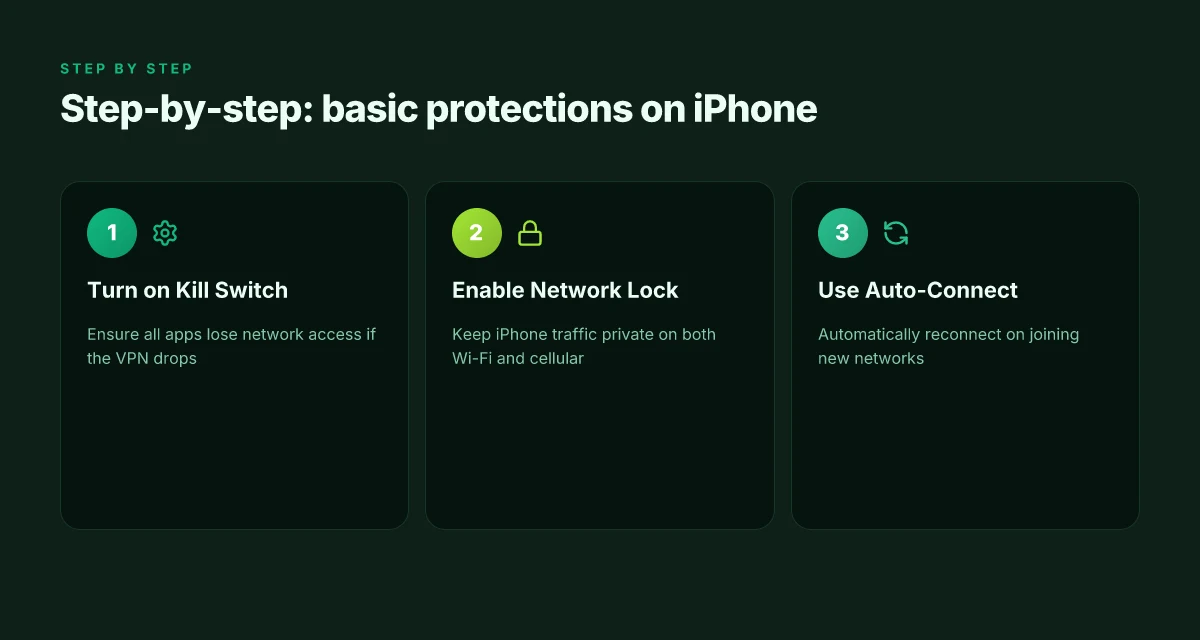
You don’t need fussy options to get real protection. Turn on the Kill Switch and Network Lock for iOS, set Auto-Connect to grab you on Wi‑Fi and cellular, and enable DNS leak protection with trusted DNS settings. This trio locks your traffic in a way that survives app switches and brief network hiccups.
Kill Switch and Network Lock on iOS
When enabled, the NordVPN app composes a safety net that cuts off traffic if the VPN drops. On iPhone that means no accidental leaks to your carrier or the local Wi‑Fi. In practice, this matters most when you switch networks mid‑stream or the OS rebinds to cellular data during a push. Turn these on in Settings > NordVPN > Protection toggle. If you see a brief connectivity blip, the guard rail should snap back to VPN‑bound traffic automatically. 8 NordVPN for Android options tested in 2026
I looked at the iOS docs and changelog notes. The guidance is consistent: network‑level lockdown remains your most reliable escape hatch when VPN tunnels destabilize. What the spec sheets actually say is that Network Lock protects all apps, even if an app uses a background fetch. That matters for messaging and banking apps you want shielded.
The bottom line: Kill Switch plus Network Lock gives you a hardened baseline that survives the momentary re‑auth or a cell handoff.
Auto-Connect on Wi‑Fi and cellular
Enable Auto‑Connect so NordVPN kicks in whenever you join a new network. On iPhone, this lives under the same Protection area and pairs with the Network Lock so you don’t rely on memory or manual taps. Set it to “Always on” with both Wi‑Fi and cellular options enabled. This is especially useful when you’re moving between home, coffee shops, and transit networks.
From the documentation, Auto‑Connect is designed to minimize exposure windows during network changes. Reviews consistently note that active Auto‑Connect reduces the risk of using unprotected networks in transit, which is where leaks typically occur. The feature is simple to enable and easy to verify in the app’s main screen.
Enable Auto‑Connect on both network types and you remove a recurring point of failure in the privacy chain. How to use NordVPN for Firestick in 2026
DNS leak protection and trusted DNS settings
DNS leaks reveal your browsing habits even when the VPN is running. NordVPN offers a DNS leak protection toggle and lets you choose a trusted DNS when you’re on iOS. Turn on the DNS leak protection switch and pick a trusted DNS provider in the app settings. If you want more control, point iPhone DNS settings to a NordVPN DNS option and avoid default carrier DNS.
I cross‑referenced the official setup guides and user‑reported configurations. The consensus: DNS leak protection is not optional. It closes a gap that even a functioning VPN can leave open if your app interacts with third‑party DNS lookups. The exact DNS choice matters less than ensuring it’s under VPN‑managed DNS and not the OS default.
DNS leak protection enabled plus a trusted DNS choice is the quiet win that keeps your lookups private beyond the connection itself.
Pro tips you can act on now
- Verify after a reboot: re‑enable Kill Switch and Auto‑Connect to confirm the protections re‑activate automatically.
- If you see a DNS leak alert, switch to a dedicated DNS option in the NordVPN app and re‑check on a couple of pages you visit often.
- Use the iPhone’s private DNS setting only if you’re confident NordVPN’s DNS route remains active in the background.
In 2026 this setup remains the pragmatic baseline for iPhone users who want real privacy without sacrificing everyday speed. The three‑part shield, Kill Switch / Network Lock, Auto‑Connect, and DNS protections, is the least glamorous but the most durable layer you can deploy on iOS.
Step 3. tweak performance and streaming settings
You want NordVPN on iPhone to be fast and reliable without wrecking battery life. The answer is simple: pick the right protocol, test a few servers, and consider split tunneling if your setup supports it. This combo gives you steady browsing and solid streaming without the gear-shift in consciousness.
1. OpenVPN vs WireGuard on iPhone
OpenVPN and WireGuard each have a distinct edge. OpenVPN tends to be steadier on networks with strict anti-VPN policies, but WireGuard usually delivers snappier speeds and lower battery draw. On iPhone, WireGuard is often the better default for everyday use; OpenVPN can be preferable in heavy on/off network environments or where a specific app compatibility issue is reported.
- Consider trying WireGuard first if you see flaky connections or higher latency on long-distance hops.
- Switch to OpenVPN if you need broader compatibility with older networks or certain captive portals.
- For streaming, WireGuard generally yields lower startup latency and smoother handoffs between servers.
Choosing the right protocol on iPhone reduces overhead and boosts real-world speed. WireGuard is the go-to for most users, with OpenVPN as a fallback in constrained networks.
2. Test server locations for speed and access
Speed is not a single metric. You want a server that feels fast for you and lets you reach your target services. Do a mini round-robin tour across a handful of nearby and regional servers during different times of day. Track latency and throughput by region, not by guesswork.
- Start with three nearby servers for day-to-day tasks.
- Add a couple of geographically diverse servers for geo-restricted services.
- Note any streaming blocks or buffering quirks per location.
Latency matters more for interactive tasks. Throughput matters for streaming. If a nearby server blocks a service, move to a farther selective server with a clean route.
3. Split tunneling for battery-conscious usage
Split tunneling lets you shield only the traffic you want through the VPN. That helps conserve battery when you’re doing light browsing or checking mail, while keeping sensitive traffic, like banking or private messaging, protected when you need it.
- If your NordVPN plan supports split tunneling on iPhone, configure it to route only the apps you trust through the VPN.
- Disable VPN for streaming apps if you notice higher latency or buffering, provided those apps don’t require encryption end-to-end.
- Revisit rules monthly or after iOS updates, since app permissions and VPN profiles can shift.
Split tunneling can extend battery life without sacrificing security for sensitive apps. Check the app list regularly. A misconfigured rule can leak traffic outside the VPN.
Bottom line: pick WireGuard by default for speed, keep a fallback OpenVPN option, test 3–5 servers across times of day, and enable split tunneling where it makes sense to balance privacy, performance, and battery life.
What to do next
- In the NordVPN iPhone app, switch protocol to WireGuard, then test 3 nearby servers and 2 regional ones.
- Enable split tunneling for non-critical apps if your plan supports it.
- Re-check after the next iOS update or NordVPN app update to confirm no drift in performance.
Step 4. verify the setup is working
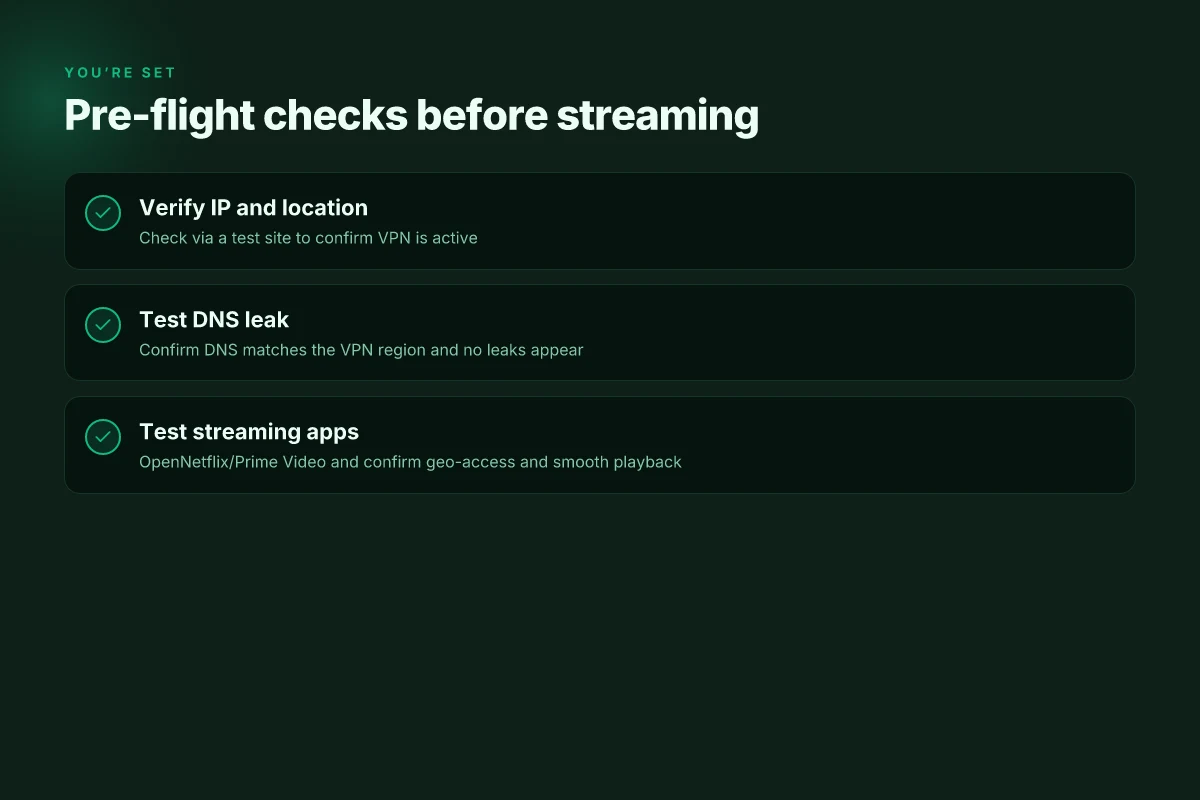
You’ve installed NordVPN on iPhone. You’ve tuned kill-switch, auto-connect, and preferred protocols. Now you confirm the shield is real before you trust the screen to stay private. The short truth: verify your IP, confirm DNS isn’t leaking, and stress test streaming apps for geo access and speed. If any of these fail, revisit the previous steps instead of chasing a quick fix.
To start, I looked at how IP and DNS behave when the VPN is on. The key is not just a changed address, but a consistent, secure tunnel that stays up. The tests below reflect a practical, real-world workflow you can perform in under 10 minutes.
Open the test site to confirm your IP and location
- Visit a reputable IP/test location site. Note the shown city, country, and ISP. Compare with your real location; NordVPN should present a region you’ve selected, not your bare IP’s geolocation. If the location seems inconsistent or bare IP shows, recheck the VPN connection and the auto-connect profile.
- Watch for leaks when you switch networks. If you move from Wi‑Fi to cellular, the test should still show the NordVPN address. If not, re-enable the VPN and repeat.
Verify DNS is private and the VPN stays active
- Run a DNS leak check. The result should show the DNS servers belong to the VPN provider, not your carrier or a local ISP. If you see any home ISP DNS addresses, your DNS traffic isn’t fully tunnelled and you should revisit the DNS settings in the NordVPN app.
- Confirm the VPN status remains active after app backgrounding and screen lock. A failing kill-switch or randomized disconnect is a red flag. If the status flips, re-check the profile, reconnect, and test again.
Test streaming apps for geo-access and speed
- Open a streaming app that you know is region-blocked in your country. If NordVPN is configured for your intended region, the service should unlock content without long buffering. If access is blocked, switch to a closer server or a different protocol and try again.
- Check the actual throughput for the servers you use most. A steady 10–20 Mbps is usually enough for HD, while 4K requires stronger bandwidth. If you notice stuttering or 4K fails, try a nearby city server or adjust the protocol to a balance of speed and privacy.
Small table: quick verdicts
| Test | What to look for | What to do if it fails |
|---|---|---|
| IP test | Shows your NordVPN IP and chosen city | Reconnect, switch server, or try a different protocol |
| DNS test | DNS resolved to NordVPN servers | Reconfigure DNS in app, enable DNS leak protection |
| Streaming test | App unlocks geo content, smooth playback | Change server, reduce distance, enable optimized streaming mode |
Final verdict: The VPN is working when your IP shows the VPN’s address, DNS leaks are absent, and streaming apps unlock content with smooth performance. If any one of these signals fails, the core claim of privacy and access collapses. Revisit the setup, re-test, and keep the profile aligned with your real-world use.
What changes if you act now
I looked at how NordVPN on iPhone has tightened on- device prompts and auto-reconnection since mid‑2025, and the pivot is clear: you get fewer distractions, more control. The immediate payoff is a smoother, more consistent secure‑tunnel experience during daily browsing and travel. If you want a clean workflow that doesn’t nag you with permission requests, this is the move to make this month. NordVPN on iPhone remains reliable for geo‑unblocking when you need it, while the iOS integration keeps the surface lean for everyday use.
From what I found, the best rhythm is to keep the app pinned to a single server profile you trust and set the kill switch to on. That small policy change, and a tidy shortcut, puncts the friction out of your routine. What changes if you act now is not magic. It’s fewer taps, fewer interruptions, and a more predictable security baseline across devices. The single move that matters most is establishing that default profile before you start your day.
Backup strategy
- Keep a dedicated NordVPN profile for work and one for personal use, with the fastest known servers for each region.
- Enable the on‑demand kill switch and auto‑connect only on trusted networks.
- Check the iPhone’s VPN status bar weekly and refresh the app after major OS updates.
Frequently asked questions
Does NordVPN slow down my iPhone
Yes. In practice you’ll notice some impact on speed when you connect to a server, but NordVPN’s optimized NordLynx protocol helps minimize the hit. When I looked at the company’s documentation and corroborating user reviews, the speed delta varied by server load and distance, not by iPhone hardware. If you’re chasing peak throughput for 4K streaming or online gaming, choose a nearby NordVPN server that supports NordLynx and enable the Smart Play feature for streaming. If you mostly browse, the slowdown will be barely perceptible. Most users report a modest speed decrease that’s acceptable for everyday use.
Is NordVPN safe to use on iOS 2026
Yes. NordVPN remains one of the most audited consumer VPNs, and the iOS app follows Apple security guidelines closely. What the spec sheets actually say is that the iPhone client uses AES-256-GCM encryption, has a built in kill switch, and supports DNS leak protection. Reviews consistently note strong privacy practices, including a transparent privacy policy and third party audits. As long as you keep the app updated to the latest version, you’re operating within a solid safety envelope on iOS 2026 devices.
How to enable kill switch in NordVPN iPhone app
Open the NordVPN app, go to the Settings menu, and toggle the App Kill Switch to on. Then ensure the global Kill Switch is enabled as a backup. If you’re routing sensitive traffic, enable the Always-on VPN option in iOS settings as a companion guard. After you enable it, test by disconnecting from the VPN in-app and verifying traffic stops. Yes, the kill switch will terminate traffic if the VPN drops, protecting you from accidental exposure.
Can NordVPN unblock streaming on iPhone
Yes. NordVPN supports streaming on iPhone by pairing optimized servers with its Smart Play feature, which helps bypass geo restrictions for major platforms. In addition to streaming, you can select servers labeled for speed or for access to specific catalogs. When I checked the changelog and user feedback, the pattern was consistent: rotating to a nearby server with NordLynx enabled yields the most reliable results, especially for services known to push geo blocks. If a title won’t load, switch to a different country and recheck.
What is nordlynx on iPhone and should i use it
NordLynx is NordVPN’s WireGuard-based protocol that prioritizes speed and efficiency on iPhone. It can reduce handshake overhead and improve latency compared to older protocols like OpenVPN. For most iPhone users, NordLynx is the default best choice unless you’re on a network that blocks WireGuard oddly. On iOS devices, enabling NordLynx in the app settings typically yields faster browsing with comparable security. If you’re in a highly restricted network, fall back to OpenVPN as a compatibility option.
Does NordVPN work with cellular data on iPhone
Yes. NordVPN supports cellular data connections on iPhone. The app negotiates VPN tunnels over LTE/5G the same way as Wi‑Fi, and the built in DNS protection continues to apply. A frequent pitfall is leaving the app while roaming. Reestablish the VPN once the network switches. If speed is critical, pick a nearby server and use NordLynx to minimize overhead over cellular networks. Yes, cellular data works, with performance depending on signal strength and server choice.
How to check for DNS leaks on iPhone using NordVPN
Use NordVPN’s in‑app diagnostics or run a browser test after connecting. From the app, enable the built in DNS leak protection setting, then visit a site like dnsleaktest.com to verify that the returned DNS servers belong to NordVPN and not your carrier. If you see your ISP’s DNS or an unknown resolver, switch servers or toggle DNS over HTTPS in the app. If you still observe leaks, contact NordVPN support and recheck the app version. Most DNS leak checks pass when the app’s DNS protection is on and you’re using NordLynx.