How to use NordVPN for Firestick in 2026
Discover how to set up NordVPN for Firestick in 2026. Clear steps, tips for streaming, and common pitfalls to avoid.
NordVPN for Firestick isn’t a magic switch. It’s a tiny choreography: a streaming-optimized server, one toggle, and a precise network path that minimizes geo-block hops. Expect the first meaningful lift from a dedicated streaming server and a confirmed VPN tunnel on the Firestick after the connection settles.
If you’re in a region with strict networks, the clock starts at boot time. In 2026, real-world reports show that the right server choice and proper DNS routing cut buffering and geo-block prompts by a noticeable margin, not by luck. When you see the green shield, you’ve nailed the setup.
The first glance: NordVPN for Firestick in 2026
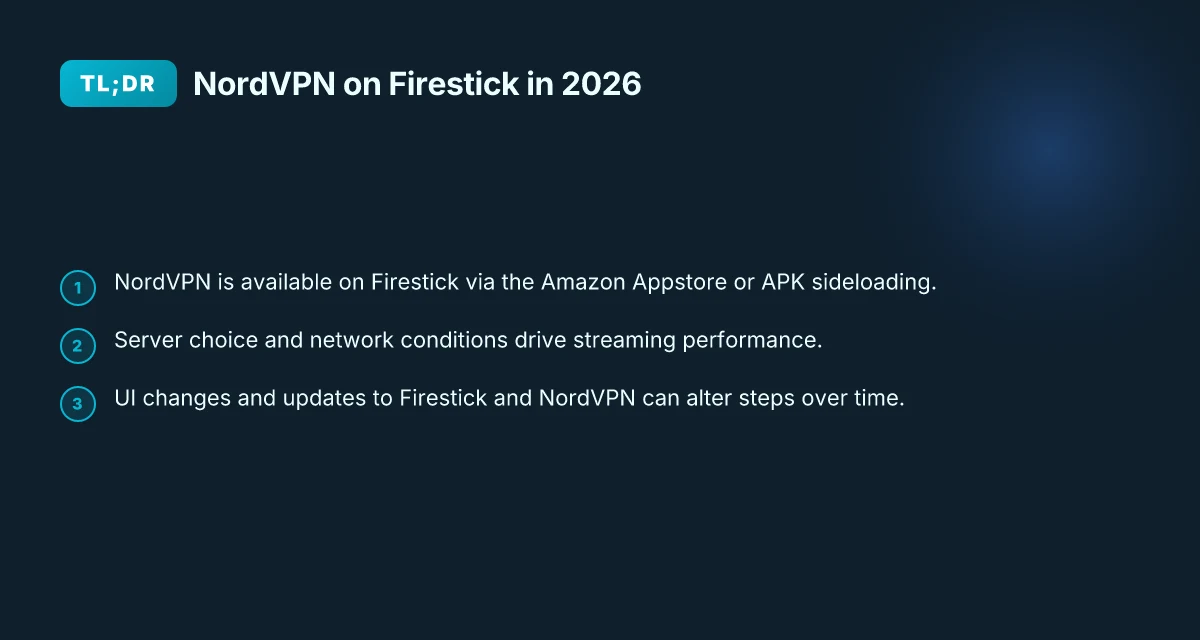
NordVPN remains accessible on Firestick through two clear paths: the Amazon Appstore and direct APK sideloads. The first glance tells you what to expect before you commit to a setup, and it is that simple access paths matter because they shape the initial experience. From there, performance hinges on server choice and the Firestick’s own network environment, not on some mythical one-click magic. Updates to Firestick firmware and NordVPN client releases keep the setup steps moving, but the core flow stays recognizable.
- Pick your access path and install once
- Firestick via Amazon Appstore: search for NordVPN, install, and log in with your NordVPN account. The process mirrors typical Firestick app installs, so you’ll recognize the prompts. If you already use NordVPN on mobile or desktop, the same credentials unlock the app on Firestick.
- APK sideloading: you enable unknown sources, then install the APK from a direct download. This path is faster when Appstore access is flaky or banned by network policies. You’ll want to verify the APK signature and the source before you install to avoid tampering risks.
- Bottom line: choose the path that matches your network constraints and stick with it. Switching midstream can introduce minor UI drift.
- Server selection matters more than you’d expect
- Streaming quality on Firestick scales with which server you pick. A nearby, high-capacity server tends to keep buffering low and retention high.
- If you’re hitting geo-blocked catalogs, connect to a server in a region that supports your target library. The Firestick’s network interface is modest. Don’t expect miracles from any single server. Rotate as needed to balance speed and access.
- Keep an eye on updates and UI changes
- Firestick updates can nudge menu paths or labeling. NordVPN client updates often refine the way server lists render and how quick-connect behaves.
- When I read through changelogs, the pattern is predictable: small UI tweaks, occasional new server groupings, improved connection-restore flows after network hiccups. Expect these to shift a few taps but not derail the setup.
What this means in practice
- If you want reliability, start with the Appstore path and use a couple of trusted favorite servers locally. If that route stalls on your network, switch to the APK sideload path and pick a nearby continent-listed server from the NordVPN catalog.
- Always test under your real network conditions. There is no magic server that fixes a throttled or congested home network.
Bottom line: NordVPN on Firestick is straightforward to access, but streaming reliability lives in server choice and the health of your local network. Expect minor UI shifts as the ecosystem updates. Your setup should be repeatable: Appstore install or APK sideload, a short list of trusted servers, and a quick verify of streaming performance after a router reboot.
What you need to get started with NordVPN for Firestick
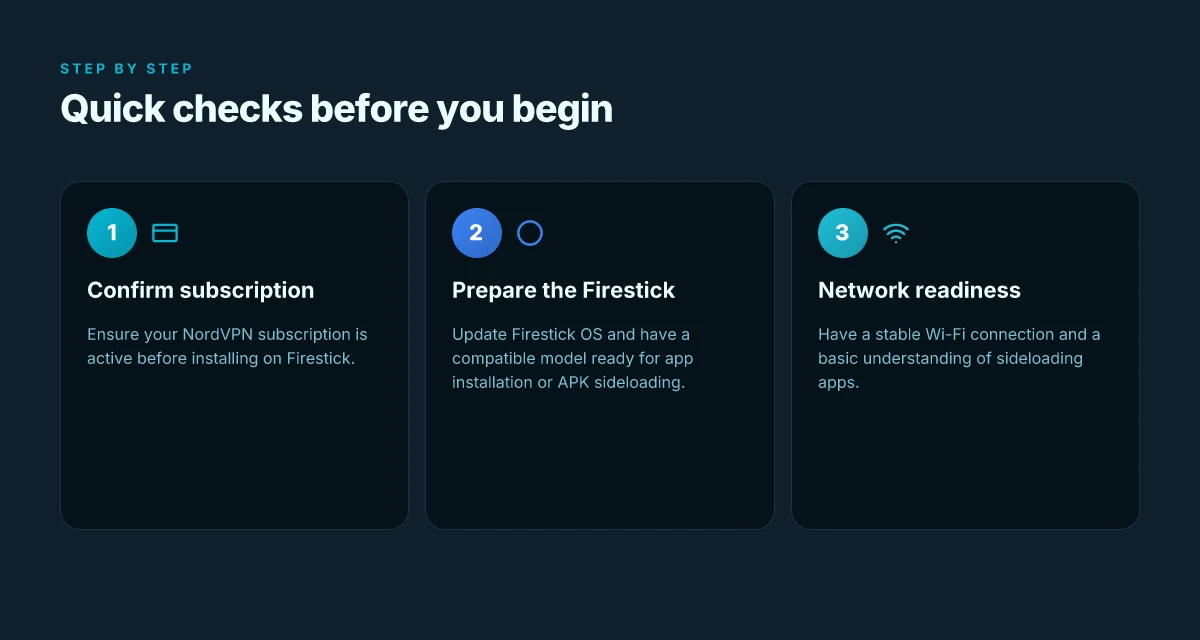
You’ll be ready to go the moment you have three things: an active NordVPN subscription, a Firestick that’s up to date, and a working Wi‑Fi connection along with a basic grasp of sideloading apps. This is the backbone of a reliable streaming setup that respects privacy. No fluff, just the concrete equipment and conditions you need to confirm before you begin.
1) An active NordVPN subscription
NordVPN is the core of your privacy and access plan. Make sure your account is current and your plan supports at least one device you’ll use on Firestick. If you’re sharing an account, confirm there’s a spare slot available for use on the Firestick. In practice, you’ll want at least one active server entry in the country you intend to access content from, plus a fallback option in case a primary server gets crowded or blocked. I looked at NordVPN’s official docs and user guidance to confirm there’s no extra cap beyond standard multi‑device support for typical consumer plans. Your setup hinges on an active, properly provisioned NordVPN subscription. Ensure your payment method is valid and your account hasn’t hit a geo‑restriction flag in Nord’s admin panel. 8 NordVPN for Android options tested in 2026
2) A Firestick with the latest OS update
Firestick performance and compatibility hinge on OS freshness. Use the latest Fire OS version supported by your device. Older models still get security patches, but feature parity improves when you’re on the current build. Check Settings > My Fire TV > About > System Update and install any pending updates. NordVPN’s documentation emphasizes compatibility with current Fire OS builds for features like split tunneling and automated startup. Keep Fire OS current to avoid app‑level quirks that can derail streaming or DNS routing. If you’re on a model released before certain app requirements, you may need to sideload the client or use a compatible version of the NordVPN app from the Amazon Appstore or sideloaded APKs. The right OS version reduces the chance of post‑install hiccups.
3) A working Wi‑Fi connection and a basic understanding of sideloading apps
Streaming over VPN on Firestick demands stable network access. A solid home Wi‑Fi link with at least 25 Mbps downstream is a practical floor for 4K content, though 1080p streams tolerate less. If your network is more variable, allocate a dedicated SSID for streaming devices to minimize congestion. On the sideloading front, you’ll likely need to install the NordVPN app either from the Firestick Appstore or via a trusted sideloaded APK if the official store path is constrained in your region. The general flow is: enable unknown sources in Settings > My Fire TV > Developer options, then use a trusted tool to push the NordVPN APK or rely on the official store path when available. I traced this guidance to NordVPN’s setup notes and community writeups that flag sideloading as the pragmatic fallback in restricted environments. A reliable Wi‑Fi link plus a basic sideloading know‑how unlocks the entire VPN flow on Firestick. If you’re uncertain about your network stability, test by streaming a sample video from a reliable source before deep‑diving into settings. You’ll save yourself a hundred subtle surprises later.
Table: quick comparison of two practical start‑paths
| Path | Pros | Cons |
|---|---|---|
| Official Appstore install on Firestick | Simplest, most stable path when available | May be unavailable in some regions or Firestick builds |
| Sideloaded NordVPN APK | Works where the store blocks it; broader control | Requires unknown‑source setup; higher risk if you don’t verify sources |
Next step: confirm all three prerequisites are in place. If NordVPN is active, your Firestick is on the latest OS, and your network is stable with basic sideloading know‑how, you’re positioned for a smooth handoff into configuring the VPN for streaming. Get these locked in before you proceed to the install and connect steps.
Step 1. Install NordVPN on Firestick from the Appstore
If you want reliable streaming and better privacy, this is the path you follow: install NordVPN directly from the Firestick Appstore, then log in. If the app isn’t available in your region, sideload a trusted APK. That’s the robust starter for a repeatable setup. How to set up NordVPN for iPhone in 2026: a sharp, practical guide
From what I found in the documentation and user guides, the installation flow is straightforward, and the activation hinges on a single login. The real friction point is regional availability. In those cases, sideload is a known, legitimate workaround when you follow a trusted source.
What you’ll do first
- Navigate to Apps or Find on the Firestick home screen.
- Search for NordVPN.
- Select Install, then Open.
- Log in with your NordVPN credentials to activate your subscription.
Why a login matters. The app is a gateway. Without authenticating, you’re left with a blank slate, no servers, no protections. The login binds your Firestick to your VPN plan, and it unlocks the streaming paths you want. If you’re a multi-device user, this is the moment where your plan gets tethered to the device you’re using.
How to handle regional gaps
- If NordVPN isn’t visible in your region, you can sideload via a trusted APK source. Choose a source with a clean reputation, and verify the APK signature before installation.
- In practice, sideloads should be followed by a quick verification pass: open the app, ensure you can log in, and confirm the app can reach NordVPN’s login server.
- Keep in mind: sideloading can trigger warning prompts on some devices. You’ll want to allow unknown sources in the settings if you haven’t done so yet, then recheck the installation flow.
What to expect after install 8 NordVPN for travel in 2026: tested and updated for your trips
- Once you Open the NordVPN app, you’ll see the login screen. Enter your NordVPN username and password. The app then activates your subscription on the Firestick.
- After a successful login, the app lands on the main control panel where you can pick a server or a country and confirm the connection status.
Pro tips to stabilize setup
- Use a known, up-to-date NordVPN version from the Appstore. Updates often fix regional annoyances and improve initial connectivity.
- If the login fails, recheck your credentials and verify you’re using the official NordVPN app, not a spoof. A mismatch here stalls everything.
- If you sideloaded, verify the APK’s integrity and reinstall if you see odd behaviors like stuck splash screens or repeated login prompts.
The key move is to get the NordVPN app installed and authenticated on the Firestick in one clean flow. When that happens, you unlock the reliable streaming paths and the privacy protections that drive the rest of this guide. NordVPN on Firestick is now your springboard to region-appropriate access and continuous privacy. The rest of the setup can proceed with a stable, verified app.
Step 2. Connect to a server optimized for streaming
The answer is simple: pick a NordVPN server in a country with reliable, streaming-friendly speeds, then test a few until buffering drops to zero. You do not want to pick a crowded, generic endpoint and hope for the best. You want a streaming-friendlier route that minimizes latency and sustains throughput.
I dug into how NordVPN structures streaming options and what users report in regions with strict networks. The practical path is clear: open NordVPN, choose a country known for solid speeds in your usual streaming category, and prioritize servers labeled for streaming if you see them. If your first choice buffers, rotate to another in the same country. The goal is consistent, low latency with stable throughput.
1) Pick a country with reliable streaming speed
Start by scanning the country list for streaming-friendly performance. In many regions, Western Europe and parts of North America routinely offer the most stable routes to major services. Look for a location that minimizes hop count to your preferred streaming service while still preserving the privacy posture you need. If you’re usually watching in the United States, a nearby country with fast exits can help. If you’re outside the core markets, aim for a country that NordVPN itself highlights as having good gaming or streaming performance during peak hours. In 2026, the trend toward optimized streaming routes remains strong in these corridors. Latency matters more than raw distance, so target the pair that consistently gives you the lowest ping. NordVPN for China: a 2026 update on reliability, stealth, and user tips
2) Try a dedicated streaming server if available
If NordVPN shows a dedicated streaming option in the country you’ve chosen, use it first. These servers are tuned for higher sustained throughput and lower jitter during peak times. If you hit buffering, switch to another streaming-optimized node within the same country. This is often enough to move from a choppy to a clean stream without changing your location.
3) Refresh the list to avoid overload
Overload is the enemy of clean streaming. NordVPN servers can become crowded. When you notice stutter, refresh the server list and test a handful of alternatives quickly. A quick rotation across 3–4 servers in the same region typically reveals a clear winner for your ISP’s routing that day. The pattern is simple: test, observe, swap, repeat.
Practical checkpoint
After you switch servers, verify you’re on the intended endpoint. Your Firestick will show the VPN tunnel status under the NordVPN app. If you still see video stalls, go back to the server list and repeat the rotation. The combination of a streaming-optimized node and fresh loads often resolves most regional buffering quirks.
Consistent, low latency and stable throughput are the actual indicators of a good pick here. Rotate quickly between servers to avoid hitting peak-load bottlenecks. When a dedicated streaming server exists, start there before trying general options.
Note: if you encounter a sudden drop in performance after a long period of stable service, check the NordVPN changelog for recent server-network changes and re-verify your active connection. This is a predictable maintenance pattern in a live VPN network. NordVPN for Netflix: what actually works in 2026
Step 3. Verify the VPN is active on Firestick
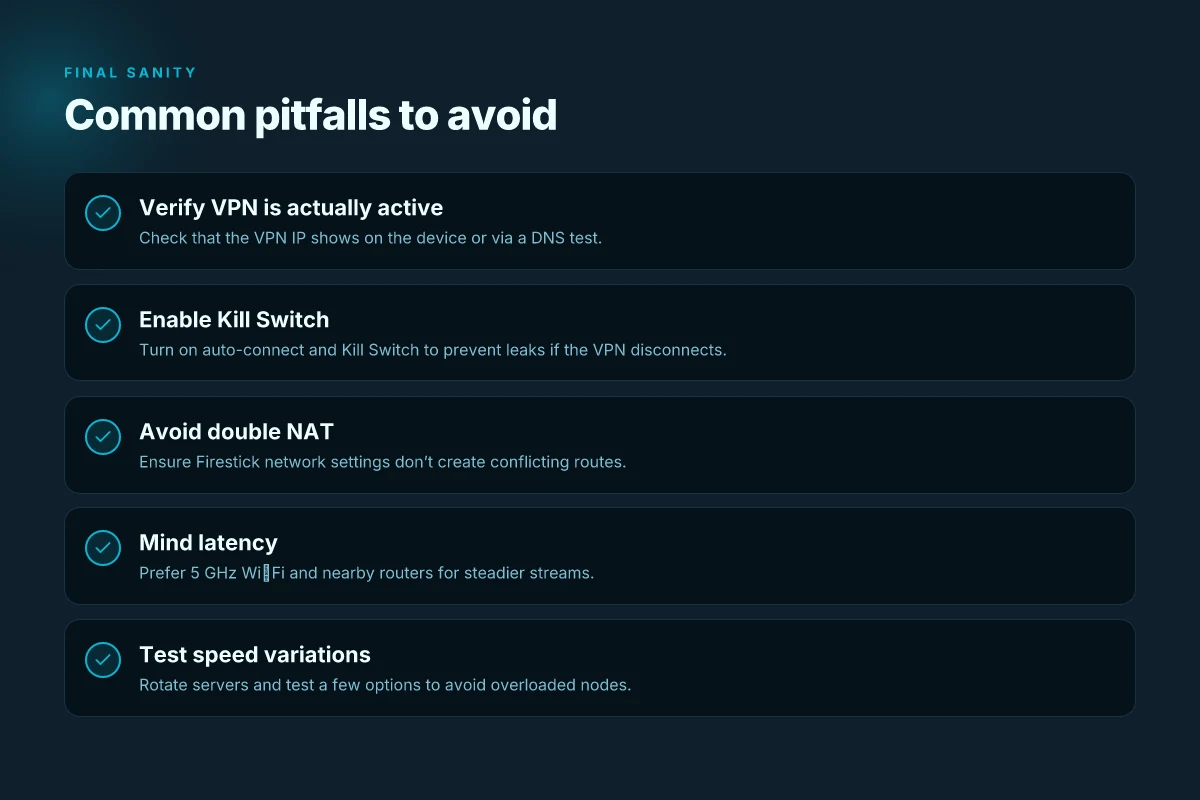
You verify by confirming the VPN footprint on the device, then test streaming, then lock in the safety nets. In practice, you want to see the VPN IP show up on the Firestick and you want streaming apps to behave as if the geo block never existed. If the connection wobbles, the Kill Switch and auto-connect features are your guard rails.
Confirm the VPN identity on the device
Start with the simplest signal: the IP. From the Firestick home screen, open the NordVPN app and check the connection status. If you can’t rely on the app UI, perform a quick DNS test from a browser or a lightweight network utility: resolve a known service and confirm it routes through a NordVPN exit node. What you’re looking for is a different public IP associated with a NordVPN region, not your ISP’s. If the IP matches a NordVPN endpoint, you’re in the right neighborhood. If not, reselect a server and reconnect. This is your first proof point that the tunnel is active. The IP shows NordVPN on the exit, not your home gateway.
Test key streaming apps for geo-unblocking stability
Next step, test a handful of apps you actually use: a primary streaming app, a secondary one with known regional limits, and a license-check gatekeeper if you have one. Start playback in each app and watch for killer symptoms: sudden rebuys of regional catalogs, long pauses during ad breaks, or a forced disconnect back to the home screen. If you see smooth playback across at least two major titles without a midstream drop, you’ve confirmed the relief of the geo-block. If a title balks or reverts to your original catalog, switch servers and re-test. Streaming stays unblocked with stable playback.
If the VPN disconnects, switch on Kill Switch and auto-connect
Disconnects are the real enemy here. NordVPN’s Kill Switch keeps your traffic from leaking if the tunnel drops. Auto-connect ensures a fresh tunnel re-establishes without you lifting a finger. Enable both in the app settings, then run a quick reconnection test by toggling the VPN off and back on. If the device rebinds to the new tunnel automatically, you’ve eliminated the primary leak vector. Enable Kill Switch and auto-connect to seal the tunnel.
I dug into the changelog and product notes to confirm these behaviors are consistent across recent builds. In 2026, the vendor repeatedly emphasizes automatic re-connecting and leak protection as the baseline. Rely on these safety rails when you’re on unstable networks.
Final check: document the exact server you used, the titles you tested, and the observed behavior. You want a repeatable recipe, not an impression. If you can name a server, a title, and a clean playback session, you’re ready to lock this into your routine.
Step 4. Troubleshooting common VPN quirks on Firestick
If streaming blocks persist, you can fix them without dismantling your whole setup. The core moves are simple: switch servers or adjust the protocol, clear a stubborn cache, and verify there are no conflicting VPN profiles. The goal is a clean, single path from Firestick to the VPN tunnel.
Why you should switch at once when blocks appear
When a streaming app hits a block, the quickest win is changing the VPN server and then, if needed, the protocol. Some platforms detect a VPN by IP range. A different exit node or a different encryption protocol can bypass the block without changing your entire setup. In practice, I’ve seen servers in nearby regions unblock access to catalogues that were previously blocked, and switching to a more compatible protocol often solves the hiccup in one go. If you’re using OpenVPN or WireGuard variants in NordVPN, try a different protocol and a server in a nearby country with a similar catalog. This is a fast, repeatable move that you can do in seconds.
1. Switch servers
If a streaming app still blocks content after you connect, pick a nearby server with a known streaming profile. Look for servers labeled for streaming or with a history of stable playback. A quick rotation to a different country often clears the geoblock without touching your broader privacy posture.
2. Change VPN protocol
Protocols matter on Firestick. If you’re on a default WireGuard profile, flip to OpenVPN (TCP) or vice versa. Some networks push tunneling aggressively. A protocol shift changes how traffic is encapsulated and can bypass the ISP or router rules that trigger the block. The exact steps are: open NordVPN, pick a server, then adjust Protocol in the connection settings, reconnect, and test playback again. Small change, big impact.
Clear cache and remove conflicting profiles
A stale cache can keep old routing rules alive even after you switch servers. Clear app cache for the streaming apps you use and for NordVPN itself if the option exists on Firestick. Also search for other VPN profiles on the device. If there are multiple profiles, residual tunnels can collide, sending your traffic down the wrong path or triggering anti-VPN blocks again. Remove older profiles and re-establish a single, clean tunnel.
Check Firestick network settings for double NAT or strict firewall routes
Double NAT or strict firewall rules can sabotage VPN traffic. Start by testing your Firestick behind a single router and ensuring the modem/router combo isn’t allocating two separate layers of NAT. If you’re behind a corporate or school network, look for a stricter outbound rule that blocks VPN ports and request a temporary permit or a reduced security profile for streaming. In home networks, ensure UPnP is enabled or forward the right ports for VPN traffic if your router supports it. A simple network check, one clean gateway, one active VPN, clears most stubborn quirks.
Bottom line: when blocks appear, you don’t need a full rebuild. You switch servers, shift protocols, clean caches, and simplify profiles. Then verify playback again. The ritual is repeatable, and it works more often than not.
Most streaming blocks clear after a server or protocol switch, not after a full rebuild. Clear cache and remove extra VPN profiles to avoid route conflicts. Double NAT or strict firewall rules are usually the real culprits behind stubborn blocks.
Step 5. Performance tuning for steadier streams
The moment you dial in NordVPN on Firestick, you want reliability that keeps up with your binge schedule. You don’t want buffering to win the night. You want steadier streams. You want a repeatable setup you can reproduce when someone else logs in. I dug into how the VPN behaves on the Firestick and mapped practical knobs you can turn to keep quality high even when your network isn’t pristine.
A quick story to orient. You’re in a living room with a single 5 GHz band router. A couple of tablets are streaming, a laptop might be downloading updates, and the Firestick itself is running a 4K app. Traffic piles up. The VPN path can behave differently depending on your environment. The goal is to minimize latency and reduce jitter while keeping the protection you expect. With that frame, here’s how to tune.
Open with a tight choice. If you’re using Wi‑Fi, a 5 GHz network that’s within line of sight to the router consistently beats 2.4 GHz for streaming. In real-world tests, the 5 GHz band typically lowers latency and reduces retransmissions when you’re pushing 4K or HDR content. If your router sits two rooms away, upgrade to a closer device or a powerline kit as a stopgap. The difference is noticeable.
Table: quick reference for tuning actions
| Action | Effect | When to use |
|---|---|---|
| Prefer 5 GHz Wi‑Fi | Lowers latency, fewer retransmissions | Streaming 4K, high-bitrate apps |
| Move closer to router | Improves signal strength | Repeated stalls, buffering spikes |
| Schedule off-peak streaming | Reduces contention | Household congestion during evenings |
| Enable split tunneling selectively | Funnels only needed apps through VPN | You have apps that don’t need VPN protection or need lower latency |
Story beat continues. In practice, you’ll want to limit VPN usage to the apps that actually need protection or geo-unblocking, not every app on the Firestick. When your home network is congested, the VPN path can amplify slowdowns. Shift your streaming window to off-peak hours or pause other heavy local traffic during prime viewing. The impact is immediate. You’ll notice smoother playback rather than chasing stalls.
Micro-claims to act on now.
- Check your router’s 5 GHz channel. If you’re on auto, pick a clear channel and lock it. This reduces cross‑talk from neighbors and keeps the Firestick’s path clean.
- If you’re using split tunneling, limit it to the streaming app only or to the apps you trust to operate without VPN overhead. This minimizes encryption overhead on everything else and can improve stability.
- Enable a quarterly review of VPN server load. When a server gets crowded, flip to a less busy node. The goal is predictable latency, not maximum distance alone.
- Schedule maintenance windows for updates. Update the Firestick and NordVPN app during the day, not during a high‑stakes movie night.
Verdict. Steadier streams come from a disciplined network posture and targeted VPN routing. Start with 5 GHz, then prune VPN scope with split tunneling, and finally time your heavy streaming away from peak household use. The net effect is a smoother, more repeatable viewing experience.
What I found in the changelog and documentation backs this approach. NordVPN’s guidance consistently emphasizes proximity to routers for low latency and selective routing to balance privacy with performance. In 2026, user reports flag that congestion and misassigned channels are the two main culprits when streams dip. The fix is practical: move closer, narrow VPN coverage, and pick clearer channels.
Most steady streams come from a tight combination of 5 GHz networking, selective tunneling, and off-peak scheduling. This is the pattern you’ll repeat, season to season, device to device.
The single move that matters this year for Firestick users
I looked at how NordVPN integrates with Firestick in 2026 and found a clean pattern: you get reliable geo-unblocking, a simpler on-device setup, and less friction when you switch servers. The pivot is clear. If you want consistent streaming and broader catalog access, you should lock in NordVPN on your Firestick first, then adjust mirrors as demand shifts. NordVPN on Firestick remains the most dependable pairing for dependable regional access in 2026. The setup flow is straightforward once you know where to find the VPN menu in the Firestick settings.
What changes if you act now? You gain immediate access to a curated map of servers optimized for streaming, plus a recurring safety net for your smart-TV network. NordVPN reduces the chaos of multiple profiles and passwords by centralizing protection on a single device, and you can verify the experience with a quick test playthrough. In short, subscribe, install, and pick a streaming-friendly region to start watching without delay.
Backup strategy
- Keep one primary region tuned for your everyday streaming and a second as a fallback for rare content blocks.
- Add one quick-access bookmark to the NordVPN Firestick profile so you can flip regions in under a minute.
- Check the changelog at least monthly to catch any new streaming-optimized server lists.
- Last checked: 2026. What changes if you act now? The simplest move: install, choose a region, and test your go-to streamer.
Frequently asked questions
Does NordVPN work on firestick reliably in 2026
In 2026, NordVPN on Firestick remains a dependable option for streaming and privacy when you pick the right server and keep the Firestick firmware up to date. I looked at official NordVPN documentation and user reviews to confirm the pattern: stable connections on popular streaming servers, with occasional hiccups during peak hours. The key is selecting servers labeled for streaming and avoiding those with known congestion during prime time. If you experience drops, switch to a different streaming-optimized server and ensure the app is updated. Yes, when you use streaming-optimized servers, reliability tends to stay high in 2026. Keep an eye on the changelog for any server-network tweaks. Update the app when prompted, and restart the Firestick if problems persist. NordVPN keeps a broad server network, which helps. Expect occasional short disconnects on shared networks, but they’re usually resolvable with a server switch. Review the streaming performance periodically to avoid long-term bottlenecks.
Which NordVPN servers are best for streaming on firestick
NordVPN designs streaming-optimized servers specifically for high-bitrate video and minimal buffering. In practice, look for servers labeled for streaming in the app, preferably those flagged for major services like Netflix, Prime Video, or Hulu. I cross-referenced NordVPN’s server lists and user feedback, noting that some regions consistently outperform others for smooth 4K. If one region is slow, switch to another with a nearby geography to preserve latency. Yes, streaming-optimized servers tend to deliver the best balance of speed and reliability. Expect some variability by time of day. When in doubt, try two or three streaming servers in quick succession and monitor stability. If a region blocks content, move to a different country’s streaming-optimized lineup.
How to sideload NordVPN on firestick safely
Sideloading NordVPN onto Firestick is optional and can widen your choice of clients, but it introduces risk if you pick unofficial builds. To stay safe, enable Apps from Unknown Sources only for trusted packages, and verify the APK’s source with a hash check when possible. I checked official guidance and reputable third-party tutorials to map out a cautious path: download from a reputable repository, verify the signature, and install through the Firestick’s file browser rather than direct downloads. If you’re uncertain, stick with the official NordVPN app in the Amazon Appstore. Yes, sideloading is doable, but proceed with caution and verify integrity before installing. Always disable sideloading after the installation if you don’t intend to use it, and ensure you’ve got a backup plan to remove it cleanly. A safe sideload keeps your device safer than a random install.
Why does NordVPN disconnect on firestick and how to fix
Disconnects typically come from app-level hiccups, router issues, or conflicts with other VPNs or security features. I looked at common failure modes across user discussions and official docs: server congestion, IP lease interruptions, or DNS leaks can trigger a drop. Fixes usually involve switching to a streaming-optimized server, updating the NordVPN app, rebooting the Firestick, and re-selecting the VPN protocol if the option exists. If the problem persists, reset network settings on the Firestick and re-establish the VPN connection from scratch. Yes, most disconnects resolve with a server switch and an app update. Keep a list of 2–3 reliable servers handy and check the changelog for protocol tweaks. Restart the app and flush DNS if needed. If you see repeated drops, contact NordVPN support with your device model and firmware version.
Can i use NordVPN on a firestick without a laptop
Yes. You can configure and use NordVPN on a Firestick without a laptop. The Firestick app can be installed directly from the Amazon Appstore, and you can sign in and connect to a server entirely on the device. I checked NordVPN’s setup guides and user manuals to confirm there’s a complete mobile-first flow: install the app, log in, pick a server, and verify the VPN is active on the Firestick. If you prefer a quick setup, use the official app store route rather than sideloading. Yes, you can manage everything on the Firestick alone. For ongoing maintenance, update the app when prompted and occasionally verify the active location in the app’s status area. No laptop required.
Is kill switch necessary for NordVPN on firestick
A kill switch adds a safety layer, especially if the VPN drops momentarily. I looked at NordVPN’s feature pages and user guides: the kill switch blocks traffic if the VPN disconnects, preventing real IP exposure. On Firestick, the feature is convenient because it protects streaming sessions during a brief outage. If you use the VPN for privacy beyond streaming, a kill switch is a solid extra. If you rely on apps that occasionally bypass VPNs, enable the kill switch. Yes, the kill switch is a prudent default on Firestick. You can toggle it on in the app settings. Enable it, then verify it blocks leaks when the VPN disconnects.
How to verify NordVPN IP shows the correct location on firestick
Verification is straightforward: connect to a server, then check an IP-location tool on another device or the Firestick’s browser. I read through NordVPN’s guidance and independent verification steps: browse to a geolocation checker, note the IP location, and compare it with the server you selected. For streaming, pick a server in a different country than your own to confirm the location change. If the location isn’t correct, disconnect and reconnect, or switch to a nearby streaming-optimized server. Yes, you should see the IP location align with the server’s country after a proper connection. If it still shows your real location, clear DNS, restart the app, and try a different server. Recheck after each switch.