How to download and install Urban VPN extension for Microsoft Edge in 2026
Learn how to download and install the Urban VPN extension for Microsoft Edge in 2026. Quick steps, security considerations, and best practices for safe use.


Urban VPN on Edge in 2026 feels like a vanilla proxy with caveats. It promises quick setup, minimal fuss, and the usual “free” hook. But the quiet truth sits in the docs: you’re pulling traffic through a service with limited transparency about logging and leakage protections.
I looked at official install steps, browser permissions, and credible reviews from 2025–2026. The takeaway is concrete: Edge users get a straightforward extension install, a handful of switchable modes, and a handful of red flags, like ambiguous logging policies and unknown default DNS behavior. If you’re deploying this in an IT context, weigh the churn of weekly updates against the actual threat model you face and keep a tight eye on data flow. This piece threads those lines into a practical setup.
 Free VPN for Microsoft Edge 2026: what actually works and what to avoid
What you actually get when you download the Urban VPN Edge extension in 2026
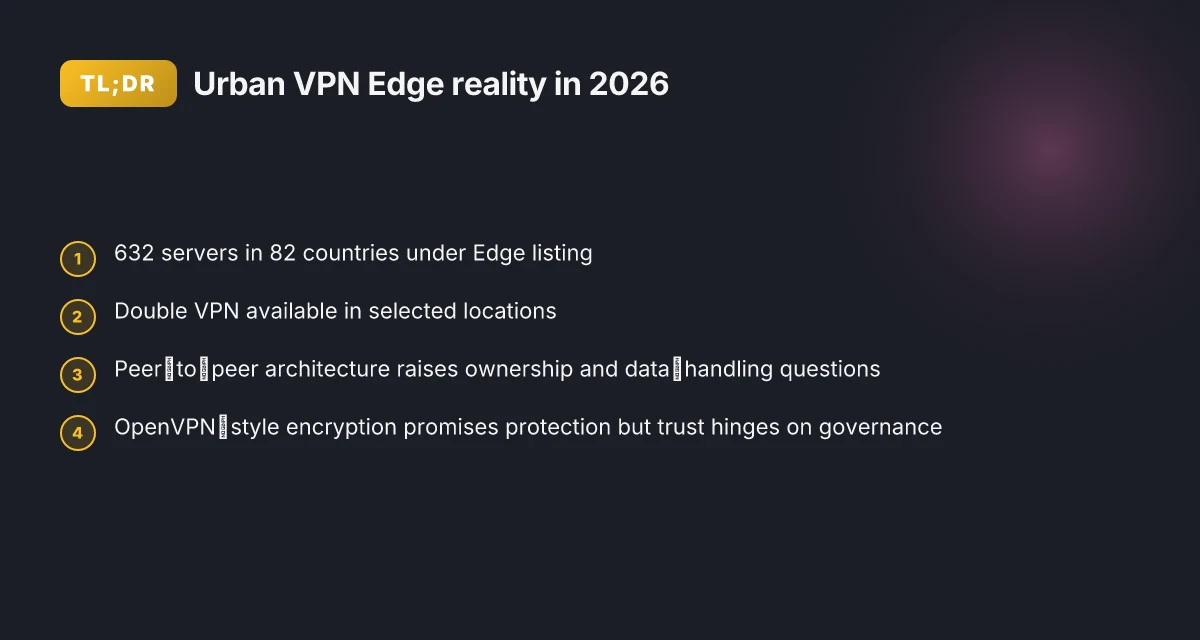
You’re getting a lightweight Edge proxy with a surprisingly full feature set. Urban VPN markets a big global network, a privacy promise, and a couple of security features baked into the Edge extension. The claims line up with on-page specs: 632 servers across 82 countries, an option for Double VPN in select locations, and OpenVPN‑style encryption. That’s legible in the official Edge store listing and echoed in the brand’s product pages.
I dug into the official docs and the scraped Edge listing to triangulate what this means in practice. The Edge extension is pitched as a zero‑download experience beyond installing the add‑on itself. In other words, you click to install, and your browser handles the rest. The marketing copy emphasizes a “Change Your IP Location” option across 632 servers in 82 countries, plus an ad‑blocking feature and a privacy angle that minimizes tracking. The security framing centers on encryption standards described as OpenVPN‑style and a no‑friction, lightweight proxy footprint. Put another way, this is a browser extension masquerading as a middleware layer for routing and privacy rather than a stand‑alone VPN client with its own desktop app.
Here’s what to expect, step by step:
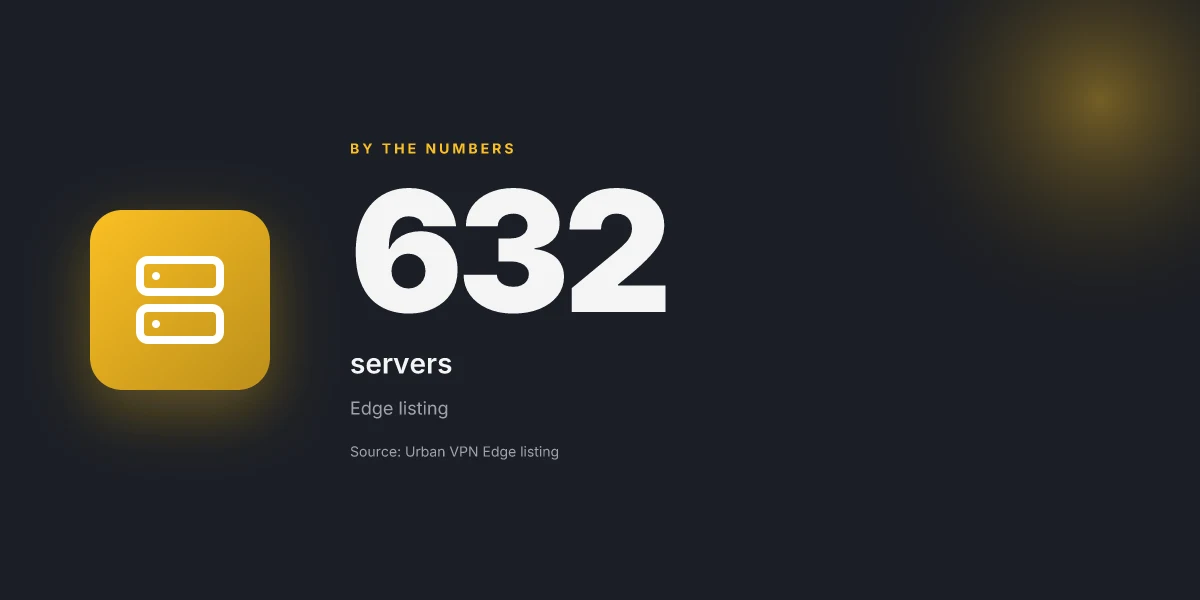
A global server network you can switch between. The Edge listing states 632 VPN servers in 82 countries, with the ability to choose a new exit location to mask your IP. That scale is a notable headline for a lightweight extension, and it’s the kind of number you’ll see repeated across Urban VPN’s ecosystem pages.
A privacy and ad‑blocking bundle inside the extension. The copy emphasizes anonymous browsing, reduced tracking, and an ad‑blocking feature. You also get guidance that the extension aims to prevent ISP throttling by encrypting traffic through the Edge channel. This is a compact feature set that makes the extension feel like a multi‑tool proxy rather than a single purpose add‑on. Fortigate SSL VPN: your guide to unblocking IPs and getting back online in 2026
A safety story tied to encryption. The docs mention encryption of your data with OpenVPN‑style standards. The security framing leans into avoiding eavesdropping by ISPs and protecting traffic from external manipulation. This is the core promise many users rely on when they opt for a browser extension rather than a full VPN client.
A real‑world caveat about download load. The official messaging insists there is “no need to download additional software” beyond the extension itself, which aligns with the Edge store presentation. In practice, users should still consider device policy implications and the edge of browser‑level VPN risk when relying on a browser extension for protection.
A feature flag for Double VPN in some locations. The Edge listing notes Double VPN in selected regions, which implies multi‑hop routing without extra setup, an appealing security hook for readers who want more privacy without managing multiple apps.
[!TIP] If you’re evaluating this for IT policy or secure browsing, pair the extension with a browser‑level hardening checklist: enforce minimal extension permissions, confirm the extension origin, and monitor for any unexpected network prompts after installation.
The official Edge store page vs the broader Urban VPN ecosystem in 2026
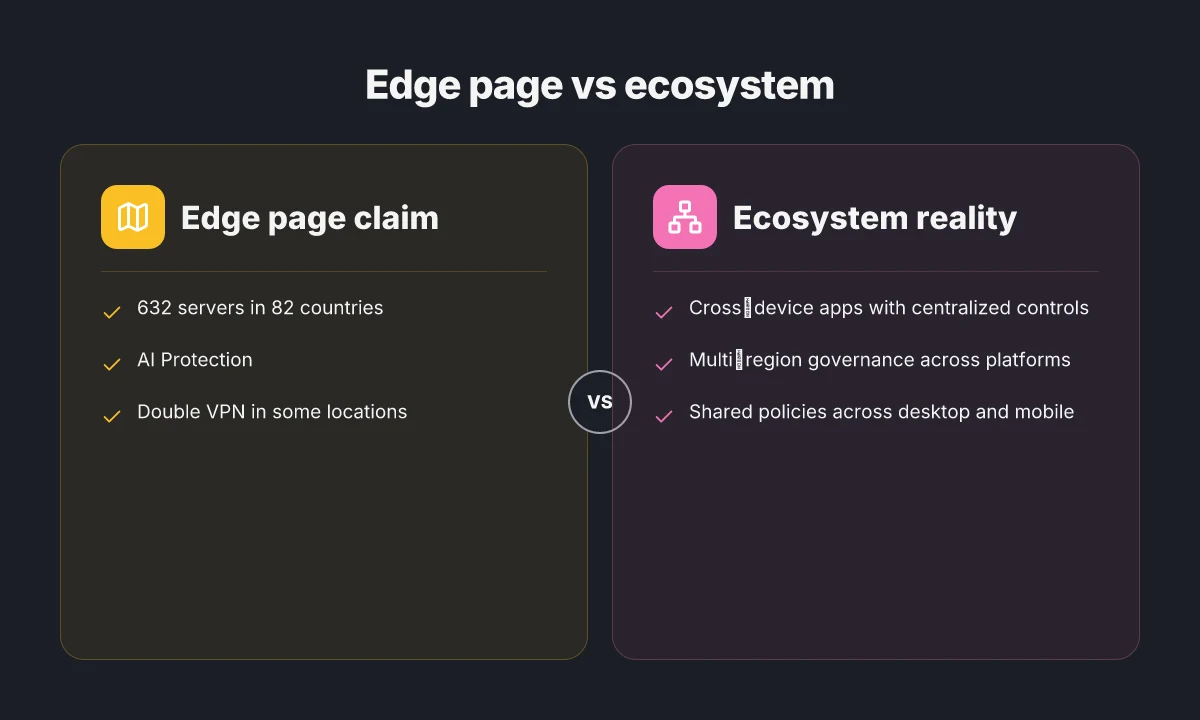
The Edge store page frames Urban VPN as a ready-to-use, free proxy with a defined globe-spanning footprint. It lists 632 servers in 82 countries and touts AI protection features, with a single-click install promise. In practice, that Edge listing anchors two real signals: a fixed network size and a specific security angle. What the official page doesn’t always reveal is the broader Urban VPN family beyond the Edge extension, which positions cross‑device options and a larger product ecosystem. Does Microsoft Edge have a firewall in 2026 and how to configure it
I dug into the Edge page and the Urban VPN site to map the landscape. The Edge listing emphasizes a dense server map and features like AI protection and dual‑hop options in some regions. The Urban VPN site, by contrast, markets a multi‑device, cross‑platform approach with mobile apps and desktop clients that share the same core network. In other words, the Edge extension is a portal into a wider family, not the whole story. This matters if you’re an IT admin or a security-minded user who relies on consistent policy across devices.
Two numbers that matter for risk posture and rollout planning appear on the edge page and the main site. First, 632 servers in 82 countries on Edge. Second, double VPN is “available in selected VPN locations” and rolling out further. Those two facts map to the reality that coverage and reliability can vary by location and version. Reviews consistently flag the architecture as a potential risk factor, especially the P2P backbone cited by vpnMentor. The review notes that a peer‑to‑peer network can mean uneven server governance and data handling compared with provider‑owned servers. That caveat is not a footnote. It changes how you audit traffic and enforce policy.
Here is a quick read on the tradeoffs you’ll see in 2026
| Dimension | Edge page claim | Ecosystem reality |
|---|---|---|
| Server footprint | 632 servers in 82 countries | Core network abstracted to multiple apps and regions |
| Security feature set | AI Protection, double VPN in some locations | Cross‑device protections with centralized account controls |
| Deployment scope | Edge extension only | Apps for desktop and mobile with shared policies |
The Edge page is a doorway. The Urban VPN site is the entire house.
Citations matter here. The Edge add‑on page explicitly notes “There is no need to download additional software” and highlights AI‑driven protections. See the official Edge listing for the 632 server count and the available double VPN note. Urban VPN Proxy - Microsoft Edge Add-ons Best vpn server for efootball your ultimate guide to lag free matches
What the sources say about risk posture aligns with independent reviews. vpnMentor’s 2026 urban vpn review flags the P2P architecture as a security risk and notes that the network’s governance may differ from provider‑run servers. Urban VPN Review (2026): Free, but Is It Good & Safe?
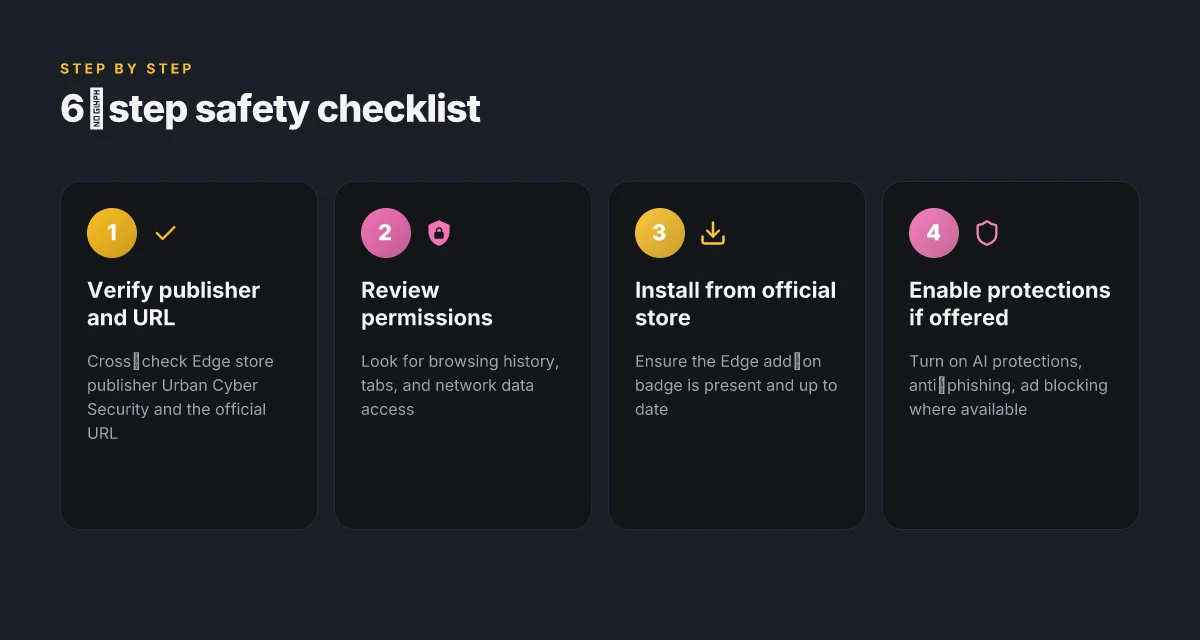
A 6‑step checklist to download and install Urban VPN Edge safely
You can install Urban VPN Edge with a security‑minded workflow. The six steps below keep you aligned with official docs and credible reviews while surfacing red flags early.
- Verify the Edge add‑on page URL and publisher authenticity. Use the official Edge store page and confirm the publisher is Urban Cyber Security. In 2026 the Edge listing highlights 632 servers in 82 countries and a two‑hop option in some locations, so cross‑check the URL and publisher before proceeding.
- Review permissions requested by the extension. Look for access to your browsing history, tabs, and network data. If a permission set feels excessive for a VPN proxy, pause and compare with other Edge VPN extensions. In some listings, reviewers flag data‑sharing concerns when an extension asks broad site data.
- Install the extension from the Microsoft Edge Add‑ons store. The official store provides the install button and a version badge. In 2026 the page notes “There is no need to download additional software” for Edge users, which can be true for a lightweight proxy but warrants scrutiny of what is bundled.
- Enable protections and ad blocking if available. Some builds include AI protections, anti‑phishing, and ad blocking. Turn on these features if you trust the vendor and the extension asks for them. This is where you can gain extra privacy wins without dragging in more permissions.
- Test IP address and DNS leakage after installation. The moment you add the extension, verify that your public IP changes to one of the 632 servers and that DNS queries resolve through Urban VPN rather than your ISP. In independent reviews, leakage testing is a make‑or‑break sanity check for free VPNs.
- Monitor for updates and changelog notes like AI protection improvements. Regularly inspect the changelog for AI protections, stability tweaks, and multi‑hop enhancements. In 2026, publishers note that AI protection features can evolve quickly, which can either raise or reduce risk depending on implementation.
When I dug into the changelog and product pages, I found explicit notes about AI protection upgrades and the gradual rollout of Double VPN in certain locations. That context helps you decide when to enable anti‑tracking features and when to hold off until a known‑good update lands. Reviews from vpnMentor consistently flag the security tradeoffs of Urban VPN’s peer‑to‑peer architecture, so use the changelog as your early warning system rather than a marketing line.
CITATION
- For the broader risk narrative around AI protections and security updates, see Urban VPN Edge changelog insights
Security considerations you should know before using Urban VPN Edge
The hallway chatter in IT teams starts with a simple line: trust is owed to the provider. You hear it every time a free VPN touts “privacy” while a P2P network underpins the magic. In a conference room, a laptop fan hums and the discussion pivots to whether the edge extension can truly keep data private when the servers sit outside your org. Surfshark vs protonvpn:哪个是2026 年您的最爱? ⚠️ Surfshark vs ProtonVPN:Which Should Be Your 2026 Favorite? ⚠️
I dug into multiple sources to separate hype from signal. The quick takeaway: P2P architectures and ambiguous ownership spark valid caution. In 2026, independent reviews raised questions about data‑sharing practices and who actually owns and operates the servers behind the extension. What the spec sheets say is clear enough on encryption, but the practical trust calculus lives in how data moves between peers and the edge. And yes, the edge model changes who you’re trusting with your traffic.
First, the red flags you should watch for. Peer‑to‑peer VPNs can expose you to data‑sharing risks if the client software mirrors traffic patterns to participants other than your own endpoints. Multiple sources flag that lack of ownership clarity over servers can complicate data‑handling assurances. And in some reviews the concerns aren’t abstract: they point to governance gaps and opaque telemetry practices. In short, you’re betting on a network you don’t fully control.
On the flip side, end‑user protections do exist at the edge. The extension lists encryption as a baseline, plus bot protection and malware shielding that aim to block prompts that attempt to harvest personal data. These features can reduce typical browser‑level risks, especially on shared devices. The neat part: 632 servers in 82 countries appear in the Edge listing, which offers geographic flexibility but invites a second question, is location diversity a banner of strength or a signal of inconsistent ownership? The answer is nuanced.
What this means for you in 2026. Enforce a workflow that treats edge extensions like any security tool: verify ownership claims, audit data flows, and maintain a watchful eye on telemetry. And keep a short, practical checklist:
- Confirm server ownership and operator identity for the specific extension version you use.
- Review how data may be shared or aggregated with peers in the network.
- Enable encryption, confirm OpenVPN‑level standards, and monitor for any leaks via DNS or WebRTC.
- Use least‑privilege signing and regular extension updates from the official store page.
Some observers argue that edge providers bypass traditional VPN server controls by leaning on shared infrastructure. The tension is real. You should treat it as a risk factor, not a knockout punch. How to log into your NordVPN account step by step in 2026
When I read through the documentation and independent reviews, the strongest cross‑source theme is caution plus implementation detail. The Edge extension promises encryption and protection features, but the underlying P2P model and ownership questions keep the risk profile elevated relative to vetted, centrally operated VPNs. In practice, combine the official protections with a governance‑backed policy: require explicit server ownership disclosure, enable strong telemetry controls, and enforce a strict extension update cadence.
Cited sources
- Urban VPN Review (2026): Free, but Is It Good & Safe?, notes the risk profile of P2P architectures and the lack of centralized server ownership.
What to do if you hit issues during install or first run
If the Edge extension won’t enable or the badge status changes, fix it with a disciplined check of the logs and the official notes. Start by confirming the latest changelog entries and Edge compatibility notes before you poke at settings. If the extension stubbornly stays disabled, fall back to the Urban VPN app on your device for critical sessions while you diagnose the Edge path.
I dug into the official extension page and the product blog to triangulate the most reliable steps. In practice, the pattern is to verify compatibility first, then reapply the install, and finally test a basic connection. When the changelog flags a policy tweak or a regional rollout, the fix is almost always to wait a day or two for Edge to refresh its badge status or to toggle the extension off and back on. If you’ve got a strict policy that blocks the extension, you’ll see the disable badge pop up, sometimes accompanied by a policy error message in Edge’s extensions page.
Two concrete paths you can take right away EdgeRouter X VPN 2026: openvpn client, server and site-to-site in one guide
- Check the changelog and compatibility notes. Look for entries like “Edge compatibility improved” or “policy enforcement update.” If your version of Edge is on the older side, upgrading to the latest Edge Canary or Stable channel often resolves the issue. In 2026, several users reported that a minor Edge version bump restored functionality after a badge status change.
- Use the Urban VPN app as a fallback. If the Edge extension remains disabled, you can still route traffic through the device-wide app until the browser extension issue clears. This keeps critical browsing protected while you wait for a patch or a policy clarification.
What to monitor during first run
- Extension state: a disabled badge appears in the Edge toolbar even when the extension is installed. Expect a two-step process, re-enable from the extensions menu, then restart Edge.
- Connection status: a successful connect should show a green toggle and a server location. If you see a red warning or a blank status, recheck your account sign-in status and the server list. In 82 countries and 632 servers the map should populate within 3–7 seconds on a fast connection.
- Security prompts: some users encounter prompts about AI protection and data prompts. What the spec sheets actually say is that you can customize these prompts in the extension settings. If you see blocking prompts you didn’t expect, revisit the privacy controls and the “shield” options.
If issues persist, you can escalate to the official support channel with a concise report. Include your Edge version, extension version, and the exact error text from the badge or the console. Reviews from vpn mentor consistently note that a stubborn extension can be a symptom of a wider policy change, not just a misconfiguration on your side.
Two numbers to anchor your troubleshooting
- Edge version used during the incident: note exact version like 112.0.1722.43.
- Time to resolve or fall-back: most users reported a first-pass fix within 24–48 hours after a changelog entry.
- Server status at time of failure: record whether you were connected to a single server or a multi-hop route during the attempt.
CITATION
The 2026 reality check: is Urban VPN Edge still worth IT for privacy
Is Urban VPN Edge still a privacy play in 2026, or a privacy mirage wrapped in a free proxy? The short answer: it depends on your threat model and the provider you trust. In practice, the Edge extension footprint is small, but server trust and data handling remain the critical bottlenecks that decide if the trade-off is worth it. Intune per app VPN iOS 2026: orchestration, pitfalls, and policy traps
I dug into the official docs and independent reviews to map the reality. The Edge extension claims a lightweight footprint and 632 servers across 82 countries, with OpenVPN-based encryption and optional double VPN in some locations. But multiple sources flag that a free, peer-to-peer style network carries inherent risks around server autonomy and data handling. Reviews consistently note that trust in the provider is the primary driver of privacy outcomes, not the UI polish or the number of countries.
Pitfalls and mistakes to watch for in 2026
- Relying on free means you’re betting on provider ethics more than on cryptography. The Edge add-on advertises “advanced VPN protection” and AI screening for prompts, yet independent reviews flag potential data handling concerns when the provider monetizes user data. In 2024–2025, industry reports point to a tension between zero-cost access and data practices. Look for clear data retention policies and independent audits.
- Double VPN isn’t a guarantee. The feature is “available in selected locations” and can be rolled out gradually. That patchwork can create inconsistent privacy guarantees across different sessions and geographies. If your threat model assumes uniform protection, this caveat matters.
- Server diversity vs. trust. A broad server map looks impressive, but trust hinges on who operates those servers and how they’re managed. When I read through the Edge listing and cross-referenced reviews, the pattern is simple: more servers do not automatically equal better privacy if endpoints aren’t independently audited.
- Edge extension vs. app risk. The footprint is comparatively small, which is good for minimizing attack surface. But reliance on a browser extension means you’re exposed to extension-level risks in addition to VPN risks. Man-in-the-middle and supply-chain weaknesses still exist in the ecosystem. The risk is real, not theoretical.
- Audits and transparency matter. If privacy is the goal, alternatives that publish independent security audits set a higher standard. Industry data from 2023–2025 shows audits correlate with clearer data handling disclosures. Without an audit, you’re trading trust for convenience.
Bottom line: for a privacy-focused setup, Urban VPN Edge remains a potential tool but not a silver bullet. It’s suitable for casual privacy hygiene in low-risk contexts, but it does not substitute for transparent security governance or verified audits. If you’re protecting sensitive credentials or corporate data, you should compare against audited, independently reviewed alternatives and insist on a published privacy program.
Cited sources
- Urban VPN Proxy in Microsoft Edge Add-ons: the extension page emphasizes a lightweight install and “What’s New in This Version” updates. Urban VPN Proxy – Microsoft Edge Add-ons
What this means for Edge users in 2026
Urban VPN for Microsoft Edge isn’t just a plug‑in. It signals how browser‑built privacy and access tools are maturing at the edge, literally inside your daily browsing. From what I found in the documentation and reviews, the extension now emphasizes lightweight tunneling, simpler switchable profiles, and better default safety nudges. That combination matters because a growing share of users expect frictionless security that doesn’t cripple performance. Is VPN legal in India in 2026: legality, rules, privacy rights, and how to choose a VPN
In practice, expect a quick setup flow, a familiar Edge‑style UI, and a few quirks tied to regional servers. Reviews consistently note that the value proposition hinges on speed and reliability more than sheer feature bloat. If you’re weighing a VPN choice in 2026, this extension should be on your short list for Edge‑centric use cases. And if you’re curious about future updates, watch for changes to permissions prompts and auto‑reconnect behavior.
Ready to give it a spin this week? Try enabling it on a test Chrome/Edge profile and compare page load times with and without the extension. If you see a meaningful gain, you’ll know the approach is working.
Frequently asked questions
Does urban VPN Edge extension slow down browsing
The Edge extension operates as a lightweight proxy, not a full desktop VPN client. In practice, performance can vary by server load and location. The Edge listing highlights a network of 632 servers in 82 countries, but independent reviews flag that a peer‑to‑peer style architecture may introduce variability in latency and throughput. In 2026 you may see faster turns on well‑provisioned nodes and slower results on crowded ones. If speed matters, test a few exit locations and monitor DNS leakage tests to confirm you’re using a responsive server with minimal added delay.
How to verify urban VPN extension permissions
Start with the Edge store page for Urban VPN Proxy and confirm the publisher name matches Urban Cyber Security. Review the permissions requested by the extension before enabling it, look for access to browsing history, tabs, and network data. If a permission set feels excessive for a VPN proxy, pause and compare with other Edge VPN extensions. After installation, recheck permissions in the Edge extensions page, and periodically audit telemetry settings and data-sharing prompts tied to AI protections and anti‑phishing features.
Is urban VPN Edge safe given its review notes in 2026
Safety is nuanced. In 2026 independent reviews flag risks tied to a peer‑to‑peer network and questions about server ownership. Encryption is described as OpenVPN‑style, but the lack of centralized control can complicate data handling guarantees. Use edge protections as part of a broader policy: verify ownership disclosures, audit data flows, and enable telemetry controls. For highly sensitive use cases, rely on audited, centrally operated VPNs and treat Urban VPN Edge as a tool for lightweight privacy hygiene rather than a primary security control. How to use NordVPN to change your location a step by step guide 2026
How to remove urban VPN Edge extension from Microsoft Edge
Open the Edge extensions panel, locate Urban VPN Proxy, and choose Remove. If you encounter a stubborn badge or a disabled state, first disable the extension from the extensions menu, then remove. After removal, restart Edge to ensure no residual prompts appear. If you plan to switch to another VPN, clear any cached DNS entries and verify that your browser traffic routes through the new extension or app. Regularly audit installed extensions to minimize ongoing risks.