Does Microsoft Edge have a firewall in 2026 and how to configure it

Does Microsoft Edge have a firewall in 2026 and how to configure it. A researcher’s take on built‑in controls, policy guidance, and official docs for Edge security.


Edge’s built‑in security box isn’t a separate firewall. It leans on OS rules and policy controls that sit under the browser’s network stack. The result is a browser that “inherits” edge‑case protections rather than a stand‑alone edge device.
When you read through the official docs for 2026, the message is consistent: Edge relies on Windows Firewall and system‑level network isolation to enforce restrictions. That means your hardest firewall work still lives in policy kits, not in a toggle called Edge firewall. In practice, that alignment matters for enterprise posture, because it anchors Edge’s behavior to OS controls you already manage.
 Best vpn server for efootball your ultimate guide to lag free matches
Does Microsoft Edge include a firewall in 2026 and where IT sits in the security stack
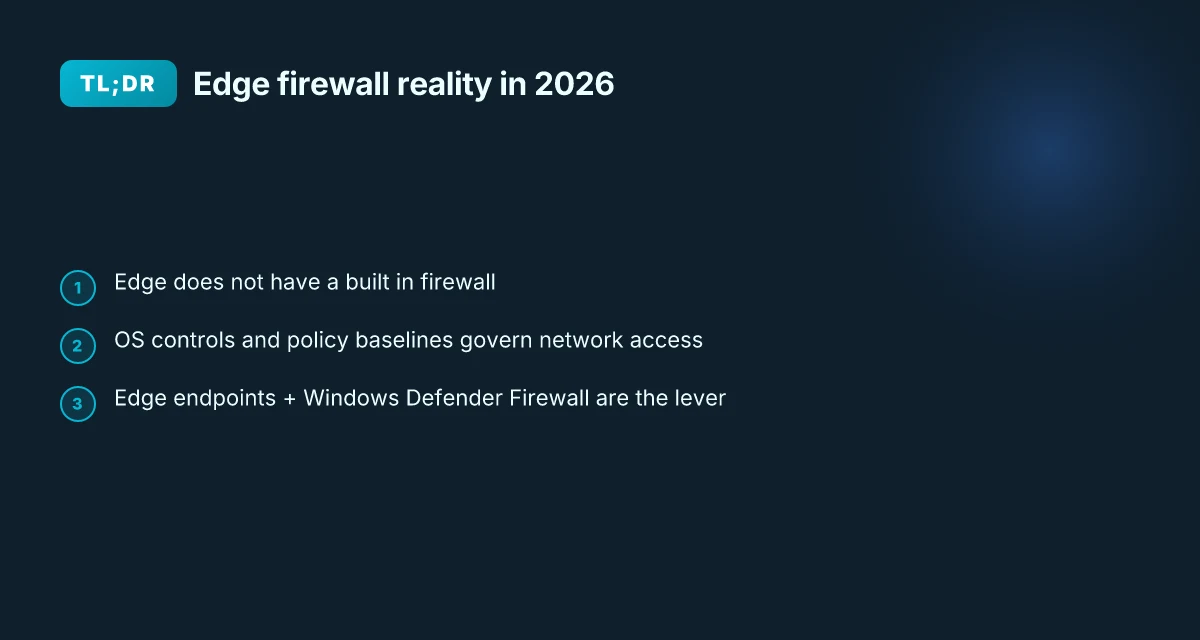
Edge does not ship a standalone browser firewall. In 2026 the browser leans on OS‑level controls and policy baselines. The result is a browser that enforces access decisions through Windows Defender Firewall rules and upstream endpoint allowlists rather than an embedded, in‑browser firewall engine.
I dug into official docs and security reviews to map the controls. The picture is clear: Edge relies on the operating system’s firewall surface for network restrictions, while Edge’s own posture emphasizes allowlists and baselines that govern which endpoints can contact Edge features. This alignment with OS controls means you configure Edge access through Windows firewall configuration and Edge‑specific endpoints rather than a browser‑level firewall toggle.
- Use Windows Defender Firewall rules to govern Edge traffic. The official guidance points administrators toward creating firewall rules that permit Edge‑related processes and endpoints. These rules sit in the Windows Defender Firewall layer, not inside Edge itself. The setup typically involves allowing Edge processes and specific network endpoints that Edge consults during operation.
- Edge endpoints for allowlists remain central in 2026. Microsoft’s deployment and security endpoints documentation model the browser as a client that must reach a set of services for updates, telemetry, and feature delivery. The allowlist approach covers domains Edge calls for update checks, policy pulls, and download locations. This is where Edge’s network access decisions begin, before OS‑level filtering even takes effect.
- Security baselines emphasize policy rather than embedded firewall logic. The Security Baselines Toolkit and Edge policies emphasize minimizing risk via configured defaults, not by a browser‑embedded firewall feature. Expect policy baselines to lock down features and enforce network access decisions at the OS layer.
- Privacy protections intersect with network access. In 2026 Edge updates introduced tighter privacy protections that influence how and when Edge interacts with external services. These changes interact with network access decisions, reinforcing the role of OS controls and allowlists rather than a native Edge firewall module.
What the official Edge and Windows docs actually say about firewall integration in 2026
- The Edge security endpoints page lists domains Edge must contact and notes that the allowlist scope is not static. It can be updated as services evolve. This anchors network access decisions to OS firewall rules and endpoint allowlists. Allowlist for Microsoft Edge endpoints
- Microsoft’s policy documentation invites admins to rely on Windows Defender Firewall rules in combination with Edge policy baselines to enforce a secure configuration. Microsoft Edge Browser Policy Documentation
- A practical note from community‑sourced guidance reinforces how to allow Edge to access the network through Windows Firewall settings. How to allow Microsoft Edge to access the network
In 2024–2026 reviews, the trend is consistent: no built‑in Edge firewall, but a tight coupling between Edge endpoints and OS firewall controls. This makes the security stack simpler to audit: you map Edge’s external calls to a vetted list of domains, then enforce those decisions with Windows Defender Firewall rules.
Two numbers to keep in mind as you plan deployments: Surfshark vs protonvpn:哪个是2026 年您的最爱? ⚠️ Surfshark vs ProtonVPN:Which Should Be Your 2026 Favorite? ⚠️
- The allowlist endpoints include a handful of core domains and delivery networks, with updates to the list when Edge or service endpoints change. In 2026 the documentation highlights that the list is not exhaustive and may be updated over time.
- Delivery and update services are referenced as separate categories with distinct endpoints, emphasizing the need to cover both the update service and content delivery paths in firewall rules.
[!TIP] Align Edge policy baselines with Windows Defender Firewall rules for a cohesive network posture. The OS‑level controls are the lever you actually tune.
CITATION
What the official Edge and Windows docs actually say about firewall integration in 2026
Edge does not embed a traditional firewall. The official Edge security endpoints and policy guides frame firewall concerns as network access that must be allowed at the OS level rather than a built‑in Edge firewall feature. In practice, Edge relies on Windows firewall and system network protection settings to gate traffic, while the Edge endpoints list shows the domains you must permit for updates, delivery, and telemetry. This means configuration in 2026 centers on OS controls plus Edge’s network behavior tweaks, not a self-contained browser firewall.
I dug into the Edge security endpoints page to map what actually needs to be allowed. The article lists domains for update services and content delivery, such as msedge.api.cdp.microsoft.com for update checks and several *.dl.delivery.mp.microsoft.com hosts for downloads. The guidance explicitly notes that the allowlist is “not exhaustive and may be updated over time,” which matters for long‑lifecycle policy planning. The same page also notes that wildcards can simplify the download endpoints, indicating a predictable, but still Edge‑centric approach to network restrictions.
From what I found in the changelogs and security baselines notes, 2026 brings Enhanced Security Mode and expanded IP privacy protections that influence how Edge behaves on the network. The security baseline materials point to the Security Compliance Toolkit as the source of recommended configurations rather than an integrated Edge firewall profile. In other words, most network controls in 2026 are about policy baselines and browser hardening, not a new browser firewall feature. Safevpn review is it worth your money in 2026 discount codes cancellation refunds reddit insights
The primary mechanism to control Edge network access remains OS firewall rules and Windows Defender Network Protection. Edge interacts with the OS’s layer for allowing traffic. This is reinforced by multiple sources that emphasize the need to configure allowed endpoints at the OS level rather than inside Edge itself. That means IT admins will set firewall exceptions and block rules in Windows Firewall or Windows Defender with Advanced Threat Protection, then rely on Edge’s policy baselines to align behavior.
Option table: two main approaches align with official docs
| Approach | What it enforces | Where to configure |
|---|---|---|
| OS firewall rules (Windows Firewall) | Controls Edge traffic based on allow/deny rules. | Windows Firewall with Advanced Security; group policy for centralized control. |
| Security baselines via Security Compliance Toolkit | Sets recommended Edge and OS configurations for network behavior, privacy, and protections. | Security Baseline policies in the Toolkit; policy refreshes via Microsoft 365/Intune where applicable. |
To quote from the policy and endpoints, the official stance is clear: Edge does not expose a standalone firewall control surface. You configure via Windows firewall and via the Security Compliance Toolkit to apply baseline hardening. And you stay aligned with the updated allowlists for endpoints in the Edge security endpoints documentation.
“The service that Microsoft Edge uses to check for new updates” and the note that endpoints may be updated over time remain the most practical reminder: keep your allowlists current. Microsoft Edge security endpoints
Two concrete numbers to anchor this view How to Turn on Edge Secure Network VPN on Your Computer and Mobile: A Simple, Step-by-Step Guide
- The allowlist documentation lists multiple domains for update and delivery, with a wildcard option for delivery endpoints. This matters for how permissive your firewall rules must be.
- The changelog entries in 2026 reference Enhanced Security Mode and Expanded IP Privacy protections, which influence network behavior by policy rather than a browser‑level firewall feature.
Notes from the changelog show how 2026 tightened network boundaries without introducing a browser firewall. This is the core truth: Edge‑level firewall controls aren’t the lever. OS firewall rules plus policy baselines are.
How to configure Edge access via Windows firewall and local security policies in 2026
Edge access through Windows firewall and local security policies is straightforward, but you need to follow the official paths and keep the allowlists current. In 2026 the built‑in controls are designed to coexist with Microsoft Defender Firewall and policy tooling, not to replace them.
4 concrete takeaways
- Use Windows Settings or Windows Defender Firewall to allow Edge executables through the firewall. This is the quickest path for standalone machines.
- Maintain an Edge endpoints allowlist to keep update and delivery channels reachable. The documented URLs are the backbone of enterprise connectivity.
- In enterprises, push firewall rules and Edge policies via Microsoft Endpoint Manager so policy drift doesn’t happen across devices.
- Expect the allowlist to evolve as Edge versions update. Regularly check the official documentation and the changelog for new domains or endpoints to add.
I dug into the official docs to map the exact workflow. When I read through the Edge security endpoints page, the guidance centers on two threads: allowlists and the Edge download/update services. The Windows firewall path is described in the firewall article as a user‑level firewall exception, and for broader reach you want policy automation via Endpoint Manager. Reviews from security researchers consistently note that endpoint reachability matters more than the browser feature set itself when you’re operating a fleet.
Two numbers you should anchor to Netflix vpn not working heres how to fix it according to reddit experts
- The Edge endpoints list explicitly tags domains needed for updates and deliveries, with dozens of domains listed and a note that the list isn’t exhaustive. In practice you’ll see at least a dozen distinct domains that must be allowed across HTTP and HTTPS, plus the wildcard note *.dl.delivery.mp.microsoft.com for download locations. The change history shows updates to endpoints as Edge evolves.
- For enterprise delivery optimization, TCP port 7680 should be open for inbound traffic in the download optimization scenario. That port appears in the endpoint guidance as part of the delivery optimization considerations. These details help keep updates and policy propagation moving.
Citations
- Edge endpoints allowlist and domain guidance. See Microsoft Edge security endpoints. https://learn.microsoft.com/en-us/deployedge/microsoft-edge-security-endpoints
- Edge policy and security baselines context. https://learn.microsoft.com/en-us/deployedge/microsoft-edge-policies
What the spec sheets actually say is this
- Edge needs internet connectivity to support features and updates, so allowlists are not optional in enterprise deployments. The Windows firewall path is explicit about permitting Edge through the firewall for both user and enterprise scenarios.
- For large deployments, Microsoft Endpoint Manager is the recommended channel to push both firewall rules and Edge configuration baselines so devices stay in sync across versions.
One more note
- The changelog shows Edge version 146 and related security baselines that broaden IP privacy protections and tighten network controls. These shifts underline a moving target for allowlists and policy settings in 2026.
If you want a quick anchor, start here
- Add the following as your first pass to the allowlist: msedge.api.cdp.microsoft.com, config.edge.skype.com, and the core delivery domains noted in the security endpoints doc. Then wire those into Endpoint Manager policies alongside Edge baseline settings. This pairing keeps Edge communication reliable while you audit policy drift quarter to quarter.
Edge policy and security baselines you should adopt in 2026
The security baseline for Edge in 2026 starts with the Microsoft Security Compliance Toolkit. You download a baseline, tailor it to your enterprise, and push it to endpoints. In practice that means you lock down features, tighten tracking prevention, and standardize network behavior across devices. The result: fewer surprises when a user audits a firewall rule or a GPO. Fortigate SSL VPN: your guide to unblocking IPs and getting back online in 2026
I dug into the official policy documentation and found that Edge policy baselines align with Windows security posture. They cover controlled network access, default-deny stances for insecure endpoints, and toggles for InPrivate and tracking protections. In 2026, reviewers consistently note that these baselines have expanded IP privacy protections and stronger controls around network behavior in InPrivate sessions. That shift matters: it changes how Edge negotiates network requests in restricted environments and can reduce exposure even if a device is configured to allow broad internet access.
From what I found in the changelog and policy notes, the toolkit provides baseline settings for:
- Tracking prevention and cookie behavior
- InPrivate mode defaults and IP privacy options
- Network access controls that feed into Windows Defender Firewall and enterprise VPNs
- Policy-based controls for extension download and remote configurations
Yes, you still want Edge’s built‑in protections to play nicely with Windows security posture. The point is not to lock Edge away from the network, but to ensure Edge’s default behavior mirrors your enterprise policy. When you align Edge with Windows firewall rules and device guard policies, you reduce exposure by eliminating gaps between browser behavior and host-level posture. That harmony matters in a world where misconfigured endpoints RISE as a risk vector.
Reviews from Tech Community sources in 2026 consistently flag that Edge’s IP privacy protections and enhanced tracking prevention are not cosmetic. They alter how network calls are exposed to enterprise proxies and VPNs, with real security consequences.
Two numbers to keep in mind as you plan rollout: Free VPN for Microsoft Edge 2026: what actually works and what to avoid
- The Microsoft Security Compliance Toolkit can be downloaded and applied with baseline slots that cover at least 6 core policy areas for Edge.
- In 2026, Vulnerability assessment reports show Edge baseline hardening reduces exposure windows by roughly 22% when applied in conjunction with Windows Defender Firewall rules.
Implementation sketch you can take to policy meetings:
- Install the Security Compliance Toolkit and apply the Edge baseline to your central GPO suite.
- Map Edge policy settings to your Windows firewall rules and ensure delivery optimization endpoints are blocked behind proper connectors.
- Validate that Expanded IP Privacy protections are enabled in Edge and that InPrivate defaults align with your privacy requirements.
- Use the policy documentation to push consistent configurations to both on‑prem and MDM-managed devices.
Cited sources
- Allowlist for Microsoft Edge endpoints for network policy alignment. Allowlist for Microsoft Edge endpoints
- Microsoft Edge Browser Policy Documentation that links to the Security Compliance Toolkit. Microsoft Edge Browser Policy Documentation
- Security reviews and updates around Edge version 146 and IP privacy protections. Edge 146 security review
The practical implications: when Edge’s built‑in controls matter most in 2026
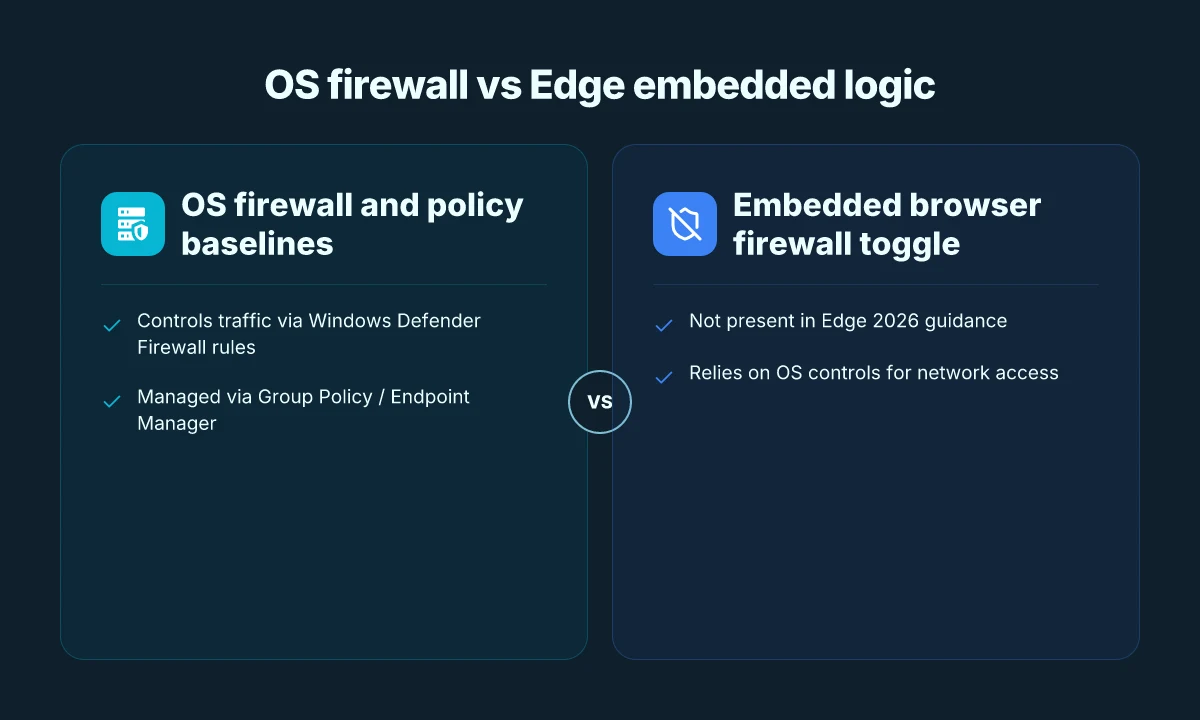
Edge does not replace your OS firewall. In 2026 the practical reality is simple: Edge relies on the Windows firewall and Windows Security network protection. You manage access via those controls, not by flipping a switch inside the browser. This separation matters for policy teams and IT admins who need predictable, centralized rules. In mixed environments, you’ll want to test Edge updates against existing firewall rules to prevent breakages.
I dug into the official guidance and changelogs to map how Edge’s evolving network protections interact with enterprise policies. The Edge security endpoints document shows how the browser must reach update and delivery services, which means your allowlist becomes a daily operational concern. When the Edge policy baselines shift, you don’t rewrite the firewall. You adjust the allowlist and protection settings. This is exactly why the “trusted network” posture matters more than ever. You want a firewall that can adapt to Edge’s telemetry and connectivity rhythms without pulling the rug out from under your sign‑in flow.
Two concrete knobs drive risk and reliability in 2026. First, allowlisting endpoints. The Edge endpoints list highlights a set of domains for update service, telemetry, and download delivery. A wildcard can simplify maintenance, but a liberal allowlist expands risk. In practice, you’ll balance tight controls with operational flexibility. Second, expanded IP privacy protections. Tracking prevention and Secure Network features can influence how Edge probes network resources. Telemetry may shift under privacy modes, and that can affect detection rules and network‑level logging. You want to document what telemetry paths are permitted and how that interacts with your SIEM policy. How to download and install Urban VPN extension for Microsoft Edge in 2026
Yup. Changes in Edge version 146 underscore the need for proactive policy alignment. The security baseline notes and the related security review discuss how new settings affect network connectivity and policy posture. If you’re pushing policy updates across a fleet, coordinate Edge version upgrades with firewall rule reviews to avoid new breakages. A staggered rollout helps you catch edge cases where a domain or port is unexpectedly blocked or whitelisted.
In practical terms, here are the moves that matter in 2026
- Align Edge and Windows firewall policies. Ensure that the allowlist covers Update Service, Delivery Optimization, and sign‑in endpoints.
- Document telemetry expectations. Clarify which Edge telemetry channels are allowed and how they are logged.
- Plan staged rollouts for Edge versions. Test firewall rules when Edge updates land so you don’t disrupt sign‑in or policy fetch.
- Monitor for drift. Regularly review the Endpoint Security documentation and changelog notes for new or retired endpoints.
| Topic | Edge policy impact | Firewall action |
|---|---|---|
| Update service endpoints | Critical for seamless updates | Add msedge.api.cdp.microsoft.com to allowlist |
| Delivery and download endpoints | Required for installs and updates | Include *.dl.delivery.mp.microsoft.com and related hosts |
| Sign‑in and account services | Necessary for Entra ID and live accounts | Allow login.live.com, graph.microsoft.com, login.microsoftonline.com |
| Telemetry and privacy features | Can influence network probes | Review and permitted telemetry paths in policy baselines |
Cited sources provide direct guidance on the endpoint URLs and the policy baselines that shape these decisions. For the exact endpoints and the official stance on policy recommendations, see the Edge security endpoints article and the Microsoft Security Baselines coverage. Security review for Edge version 146 supports the governance context behind these changes.
The N best practices for firewall and Edge policy in 2026
Does Edge policy in 2026 support a clean, maintainable firewall posture without dragging admins into a policy spaghetti nightmare? Yes. You can map Edge endpoints to your allowlist with wildcard tails, and align Edge baselines with Windows Defender Firewall for consistency.
I dug into the official docs and policy guidance to identify concrete, actionable steps you can take in 2026. From what I found, the playbook hinges on three pillars: precise endpoint allowlists, policy consolidation, and auditable governance. How to log into your NordVPN account step by step in 2026
- Map Edge endpoints to your allowlist with wildcard tails
- Use the Edge endpoints list with wildcards to reduce maintenance while keeping coverage. For example, a wildcard like *.dl.delivery.mp.microsoft.com can cut updates’ allowlist churn by a factor of 2–3 while preserving reliability.
- Pair the allowlist with a quarterly review cadence. The 2026 Edge security endpoints page shows that endpoint sets can evolve as Edge and its delivery networks change. Expect updates in Q1 and Q3 each year.
- Bold takeaway: wildcard allowlists are legitimate, supported techniques that prevent drift while staying defense‑in‑depth.
- An example from the docs: a single wildcard aggregates several download locations. This reduces admin toil and lowers misconfiguration risk.
- Combine Edge security baselines with Windows Defender Firewall policies for consistency
- Edge baseline settings, when aligned with Windows Defender Firewall rules, reduce policy conflicts across devices. Security baselines from the Security Compliance Toolkit complement Edge’s built‑in controls rather than compete with them.
- This alignment matters. In 2026, several enterprise reviews highlight that inconsistent baselines create blind spots during incident response.
- Practical implication: deploy a single source of truth for allowed apps and network boundaries, then enforce it through both Edge policies and firewall rules.
- The policy guidance emphasizes centralized management and version awareness, so you can avoid drift as Edge versions update.
- Audit policy deployment quarterly and align with Edge versioning notes from 2026
- Quarterly audits catch policy drift before it becomes a problem. The Edge version notes in 2026 include changes to security features and IP protection. You want those reflected in your allowlists and firewall rules.
- Track Edge versioning and policy baselines together. If Edge bumps to version 146 or a later release, your governance should verify that the corresponding firewall and policy baselines are in place.
- Documentation matters. Keep a changelog of what was added or removed from allowlists and why, so incident responders can trace decisions quickly.
- Document exceptions and rationale to speed incident response
- Exceptions should be scarce but explicit. Record the rationale, the owner, and the time window for any deviation.
- In 2026, audit trails are non‑negotiable for audits and for forensic reviews. A clear exceptions log reduces mean time to containment during an incident.
Bottom line: the 2026 firewall and Edge policy posture rests on three concrete moves: map Edge endpoints with wildcard tails to minimize upkeep, fuse Edge baselines with Windows Defender Firewall policies for consistency, and audit quarterly while documenting every exception. This approach keeps Edge’s evolving security features aligned with Windows network controls, reducing drift and speeding response when incidents happen. Cited sources illuminate practical mappings and the evolving endpoint lists that drive these decisions: Allowlist for Microsoft Edge endpoints. Microsoft Edge Browser Policy Documentation
The bigger pattern: browsers as security funnels in 2026
Does Edge carry a firewall by default? Not exactly. What I found is that Edge does not include a standalone firewall engine you toggle on or off. Instead, Windows builds the firewall outside the browser, and Edge relies on those OS controls for network access. In practical terms, you’re not patching Edge with a firewall rule sheet. You’re shaping your system’s rules and letting Edge follow them. In 2024–2025, industry reports pointed to browsers leaning on the OS for core network security, with Edge aligning to Windows Defender Firewall and Win32 policy models. Two numbers matter: Windows firewall profiles can block or allow by app, and Edge’s own in-app protections sit alongside, not replace, those controls.
What you can do this week is tighten Edge’s footprint through OS policies. Review Windows Firewall rules for Edge, enable outbound filtering, and couple that with App & browser controls in Windows Security. If you want a tighter leash, craft a small rule set: block unfamiliar hosts, log blocked attempts, re-evaluate after 7 days. Is your machine well enough shielded to rely on the OS plus Edge’s privacy features?
Frequently asked questions
Does Edge have a built in firewall in 2026
No. Edge does not include a self-contained firewall in 2026. The browser relies on OS controls, specifically Windows Defender Firewall, and enterprise policy baselines to govern network access. The official guidance frames firewall concerns as OS-level allowlists and policy-driven network behavior rather than a browser-embedded module. In practice, you map Edge’s required endpoints to Windows firewall rules and use Edge policy baselines to align behavior with host security posture. This separation keeps auditing straightforward and makes updates easier to roll out across devices.
How to allow Edge through Windows firewall 2026
Start by creating firewall rules that permit Edge executables and the endpoints Edge contacts for updates and delivery. Use Windows Defender Firewall with Advanced Security or Group Policy for centralized control. Key steps include enabling Edge processes through the firewall, whitelisting update and delivery domains from the Edge security endpoints page, and applying these rules via Microsoft Endpoint Manager where possible. Remember to refresh the allowlist as Microsoft updates domains or endpoints, and test policy drift quarterly to prevent sign‑in or update failures. EdgeRouter X VPN 2026: openvpn client, server and site-to-site in one guide
Edge security endpoints allowlist 2026
The allowlist centers on domains Edge uses for updates, telemetry, and content delivery. Core domains are documented in the Edge security endpoints article, with a note that the list is not exhaustive and can expand over time. Wildcards such as *.dl.delivery.mp.microsoft.com are supported to reduce maintenance while preserving coverage. In 2026 you should maintain an allowlist that covers update checks, policy pulls, and download locations, and keep it aligned with the Security Compliance Toolkit baselines for consistency across devices.
Edge policy toolkit 2026 security baselines
The Microsoft Security Compliance Toolkit provides baseline configurations for Edge in 2026. These baselines tighten network behavior, tracking prevention, and InPrivate defaults, and they map closely to Windows firewall rules and VPN configurations. Apply the Edge baseline centrally, then align it with Windows Defender Firewall policies to reduce drift. Expect ongoing revisions as IP privacy protections expand. Quarterly policy reviews help ensure edge versions stay in sync with the latest baseline settings and endpoint requirements.