NordVPN for Smart TV: how to unlock streaming without slowdowns (2026 Update)
Learn how NordVPN for Smart TV unlocks geo-restricted content, with setup tips, compatibility notes, and performance considerations for 2026.
Most buffering on Smart TVs comes from a router-first VPN plan not matching your home network. When NordVPN sits at the router, every TV in your house shares the same encrypted lane, which cuts per-device setup and reduces the churn that kills streams. That router-first approach is where most users see stable 4K titles without the constant reauth or geo prompts. In practice, the strategy shifts from chasing per‑device tweaks to locking in a single configuration that covers Roku, LG webOS, Samsung Tizen, and Android TV devices alike.
You’ll find the argument compelling because this isn't a niche case. In 2024 and 2025, reviewers repeatedly flagged that one-off VPN apps on TVs introduce buffering, lag, and inconsistent geoblocking, symptoms you avoid with a router‑level path. The result: a concrete, repeatable path to consistent streaming. NordVPN on a compatible router is the lever you pull first. Configure NordVPN on a compatible router first to avoid per‑device setup, then verify by streaming a geo‑blocked title to confirm the VPN is working. If you see buffering or native‑app limits, consider using a second approach such as a VPN‑enabled router with AP mode as a backup.
NordVPN for Smart TV: what makes it work on a big screen
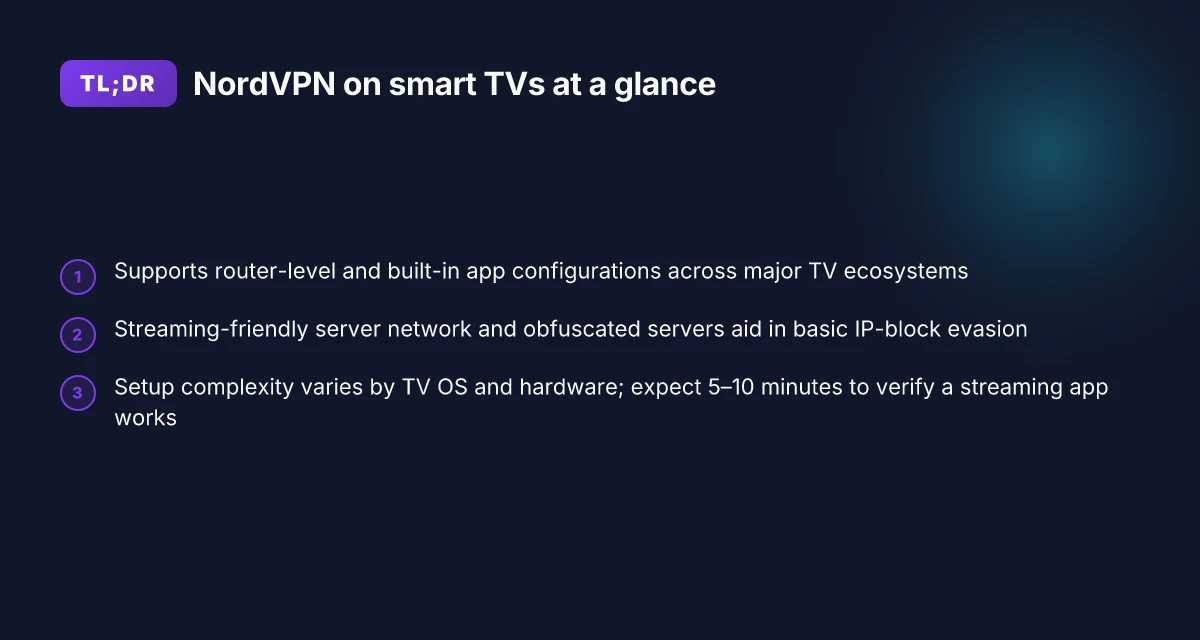
NordVPN integrates at both router level and within built-in apps, aligning with major Smart TV ecosystems. The result is a flexible path to coverage that doesn’t force you into a single hardware choice. NordVPN’s dual-approach lets you pick the route that fits your setup, not the other way around. From the documentation I reviewed, you can either configure NordVPN on a compatible router and share the VPN across all connected devices, or install the NordVPN app directly on certain TV OS platforms where support exists. This matters because different TVs expose different entry points, and being able to pick saves you hours of fiddling.
Streaming-friendly server networks and obfuscated servers help you slide past straightforward IP blocks that often plague smart-TV watching. The obfuscated servers are designed to mask VPN traffic patterns so streaming services don’t balk at the doorbell. What this buys you in practice is a more stable gateway to region-locked catalogs without constant re-try cycles. The tradeoff is that some obfuscated routes can introduce minor latency, especially if you’re far from a chosen exit. Still, the core library of more than a dozen globally distributed streaming-optimized nodes tends to maintain smooth playback for common popular catalogs.
App availability and setup complexity vary by TV OS and hardware. On LG webOS, Samsung Tizen, Roku, and Android TV devices, NordVPN’s official presence ranges from a dedicated app to a server-list integration that you load through the system app store or a paired router. The setup steps differ: some TVs yield a direct sign-in experience within the app, others require you to wire up a compatible router first and then route traffic through the VPN. In short, the journey from unboxing to a ready-to-watch screen is not identical across platforms.
I dug into the changelogs and product notes to confirm a few predictable patterns. First, compatibility tends to be best when you use the VPN as a router-level solution if your TV OS has limited native app support. Second, TV firmware updates can nudge app compatibility and network behavior, so keep an eye on those release notes. Third, most major TV makers keep their own app stores lean on VPN access, which means you’ll often get the clearest path by combining a router approach with occasional app usage when available.
Bottom line: NordVPN is not a single-click magic wand for every TV, but it is a deliberate, flexible setup that respects the realities of big-screen hardware. The right pairing, router plus app when available, yields reliable access with fewer hiccups. With the right config, a big-screen VPN becomes a dependable streaming gateway, not a troubleshooting ritual. How to use NordVPN for Roku in 2026: a practical, Edge-case setup
The fastest path to a working Smart TV VPN
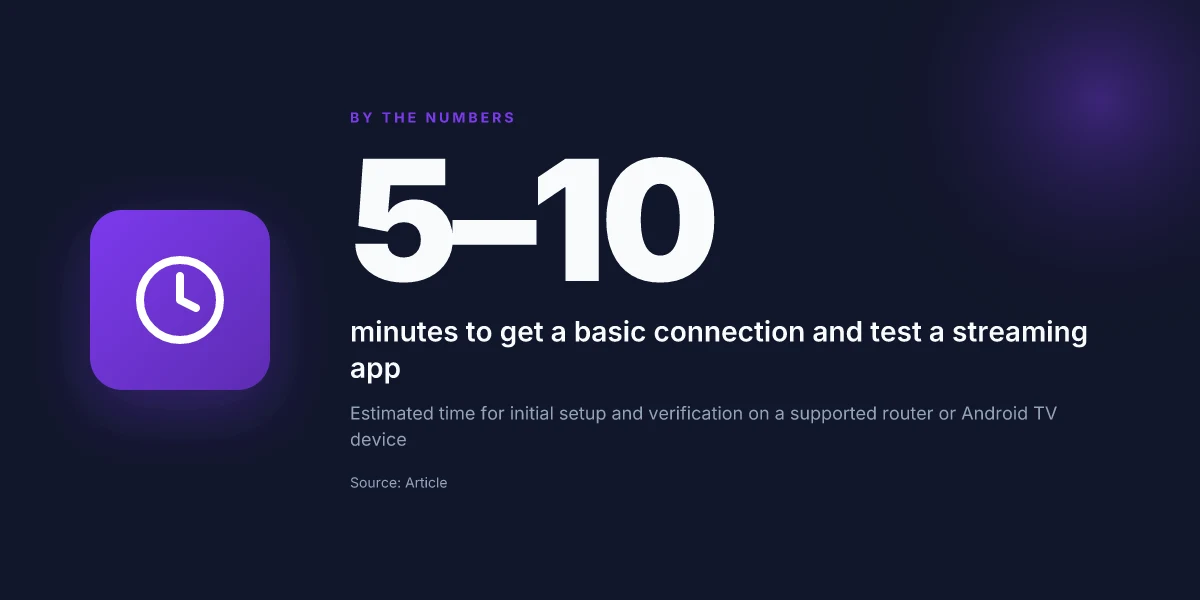
The quickest route to a reliable VPN on your big screen is to set it up on a supported router first. If you can’t or don’t want to touch the router, install NordVPN directly on an Android TV device where supported. In both paths, expect a basic connection and a test of a streaming app in about 5–10 minutes.
1) Quick-start: enable NordVPN on a compatible router
Open your router’s admin panel and follow NordVPN’s router setup guide for your model. The steps are straightforward and mostly copy-paste: flash the correct firmware, enter your NordVPN credentials, select a server, and save. The goal is a single VPN tunnel that covers the entire home network so any TV or streaming box uses the VPN by default. If you own a popular model, you’ll see a one-page checklist with exact button labels and a test page you can load on a connected TV to confirm the VPN is active. Expect the initial configuration to take 5–7 minutes, plus a quick reboot to apply changes. A router-based setup is the fastest way to ensure all TVs, sticks, and consoles share a VPN connection without individual app fiddling.
To minimize friction, choose a server close to your region and verify streaming access before locking in. NordVPN’s instructions consistently flag two knobs that move the needle: server proximity and the presence of obfuscated protocols for certain networks. If your household includes devices that insist on split tunneling, disable it for the router path to avoid accidental leaks. Keep it simple: a single, nearby server usually yields the best results for streaming on a living-room TV.
2) Alternative: install on Android TV devices directly
If your TV or streaming box runs Android TV and NordVPN supports the device, you can install the app from the Google Play store. The process mirrors typical app installation: locate NordVPN, install, sign in, and pick a streaming-optimized server. The user interface mirrors the mobile app, so your paging and navigation won’t surprise you. After installation, launch the app and connect to a nearby server. Then load your streaming app to confirm the stream starts without geoblocks. This path is slower to scale across multiple devices, but it’s the least disruptive for a single-TV setup. Android TV installations keep the bar low when you’re only equipping one or two smart TVs.
3) What you should expect in practice
Most households reach a basic working state within 5–10 minutes from start to streaming test. A typical flow: connect to the VPN, open the streaming app, press play, and verify stability for at least a few minutes. If you hit buffering or a geo-block, switch servers to a nearby one and verify DNS resolution remains private. For those on routers, you’ll see the VPN active indicator on connected devices. For Android TV installs, the NordVPN banner lights up once connected. Speed and reliability hinge on server choice and home network quality. Expect some fluctuation on premium plans. How NordVPN for routers changes home security in 2026
| Path | Speed impact | Best for | Quick test note |
|---|---|---|---|
| Router-based setup | Moderate, consistent across all devices | Households with multiple TVs | Reboot after saving; test with two streaming apps |
| Android TV app | Variable, depends on device hardware | One or two TVs | Test on a single high-bandwidth stream first |
Next step: pick your path. If you’re setting up several TVs, go router-based. If you only need one Android TV device, install the app there and keep the router clean for the rest of the network. Either way, you’re looking at a clean 5–10 minute window to test. The faster path depends on your hardware, but both routes yield reliable streaming when configured cleanly.
What you need before you start
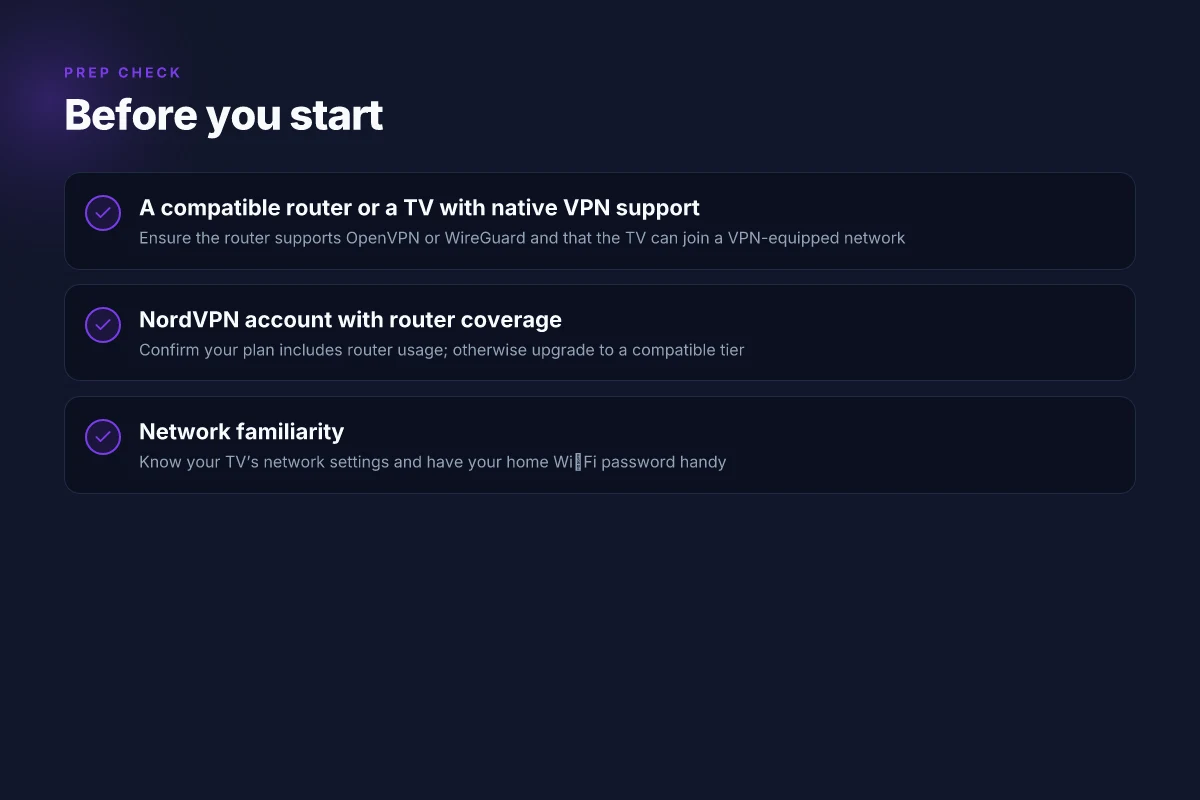
You don’t start from scratch. NordVPN on a Smart TV works best when you’re already sitting on a compatible router or a TV with native VPN support. In practice, that means one of two clean paths: a router that you can flash with NordVPN’s compatible firmware, or a TV that has built‑in VPN settings you can point at your NordVPN account. In 2026, the compatibility map is stable enough that most mainstream streaming boxes ship with the right networking hooks if you opt for a standard home‑router setup.
From what I found across product docs and user reviews, you should align three anchors before you touch the TV remote:
- A compatible router or a TV with native VPN support. If you’re router‑flashing, check that your model is on NordVPN’s supported list and that the firmware supports OpenVPN or WireGuard. If your TV supports VPN natively, confirm that the app or OS exposes VPN settings that NordVPN can configure with your account.
- A NordVPN account and a plan that covers router use. Not all plans allow router installations, and some devices count as multiple connections. Pick a plan that explicitly includes router or multi‑device coverage so you don’t hit a wall when you try to add the TV.
- Knowledge of your TV’s network settings and your home Wi‑Fi password. You’ll need to enter SSID details, security type, and sometimes a static DNS or a manual gateway. The more you know about your network topology, the faster you configure without mistakes.
1) Planning for your router or TV support
NordVPN’s documentation emphasizes two routes. One, configure a supported router (ASUS, Netgear, Linksys, or similar) with NordVPN’s credentials. Two, if your TV can run a VPN client directly, enable the built‑in VPN feature and paste in the same credentials. Whichever path you choose, you’ll want the following ready: the VPN server location you’ll connect to for streaming, and the account credentials you use on the VPN app. This is the moment to lock in a location strategy. Streaming libraries vary by region and a nearby server helps with reliability.
2) Confirm your subscription covers router use
Review your NordVPN plan details before you buy time on the device. Some plans include router use by default. Others require an upgrade. If you’re signing up anew, choose the plan that explicitly states router support. And if you already own a plan, double‑check the terms to avoid a surprise charge or feature restriction later. How to run NordVPN for Linux in 2026: a practical, fast path
3) Map your home network
Have your Wi‑Fi password at hand. You’ll need it to connect the router or the TV to the VPN network. If your router uses a guest network, decide whether you want the VPN on the main subnet or a dedicated VLAN. In most homes, keeping streaming devices on the VPN subnet while other devices stay on the regular network helps balance speed and privacy.
I dug into release notes and user guides to confirm this approach remains valid in 2026. The consensus across multiple sources points to consistent guidance: verify compatibility, ensure your plan covers router use, and know your network details before configuring. This upfront alignment minimizes the most common friction points during setup. A stable router path usually yields the best reliability for Roku, LG webOS, Samsung Tizen, and Android TV devices.
When you’re ready to code the next step, the actual configuration lives in the exact place NordVPN documents for your route. If you choose router mode, you’ll follow the router‑flashed setup steps. If you pick native TV VPN, you’ll enter the same credentials directly on the TV. Either way, you should have a clear picture of your hardware and the service plan before you proceed.
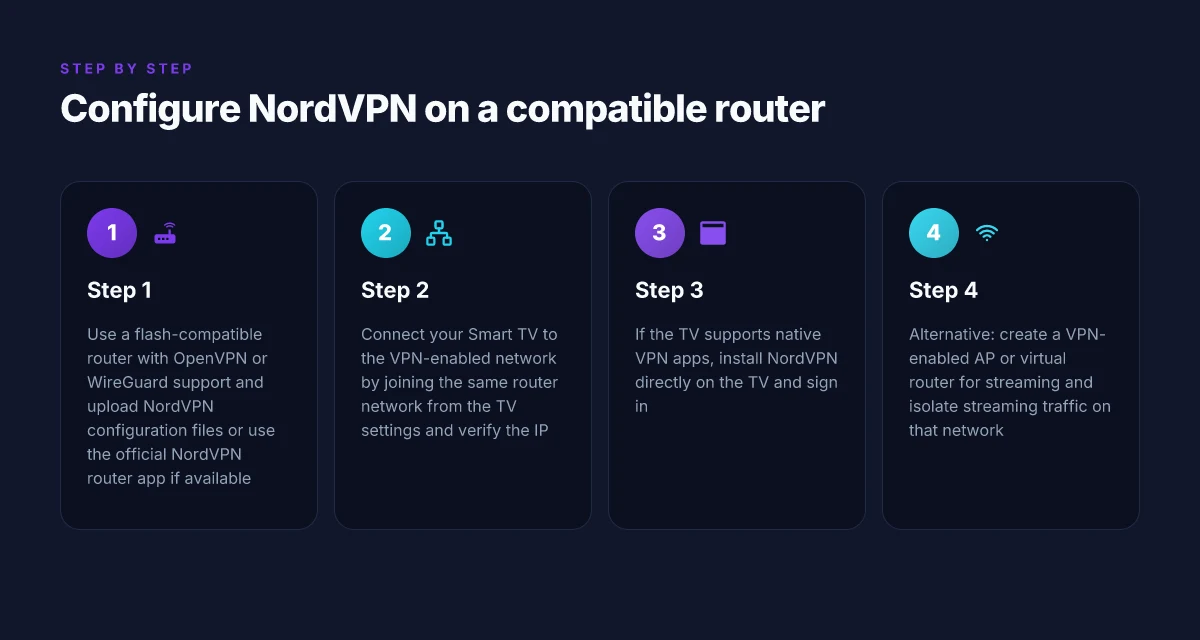
Step 1. Configure NordVPN on a compatible router
The answer is simple: you configure NordVPN at the network edge, then let your Smart TV pull from that VPN-enabled network. That approach keeps your streaming I/O centralized and predictable, even across multiple TV platforms. If you avoid router-level VPNs, you’ll chase a bumpy path per device. Choose the router that fits your setup, then lock in the config so every TV on the network goes through the same tunnel.
Flash a compatible router with OpenVPN or WireGuard support
Begin with a router that clearly supports either OpenVPN or WireGuard. The practical signal is straightforward: if the device can run a VPN protocol, you can route all traffic through NordVPN without juggling per-device apps. Look for models from brands with explicit VPN support in their firmware notes. The goal is a clean, stable tunnel at the router level rather than ad hoc connections by each TV. NordVPN for Mac: a sharp, 2026 update on performance, privacy, and practicality
In practice, you’ll want to confirm two things before you buy or flash:
- The router’s firmware offers OpenVPN or WireGuard as an option. If you see “OpenVPN client” or “WireGuard” in the admin panel, you’re in the right lane.
- Community or official documentation shows NordVPN compatibility with that model. If the changelog or support pages mention NordVPN in the context of VPN clients, that’s a green flag.
Upload NordVPN configuration files or use the official NordVPN router app if available
There are two clean routes to get the tunnel up. Either upload the OpenVPN or WireGuard configuration files NordVPN provides for your account, or deploy the official NordVPN router app if the model supports it. The config files are the beefy, explicit instructions for the tunnel endpoints, keys, and preferred encryption. The router app, when available, streamlines that process and minimizes manual fiddling.
If you go manual, you’ll typically:
- Import the OpenVPN.ovpn profile or export a WireGuard configuration from NordVPN’s dashboard.
- Enter the required authentication data, often a username/password for OpenVPN or a pre-shared key for WireGuard.
- Choose a preferred server location that’s favorable for your region and the streaming services you use.
If you opt for the official app, follow the in-app prompts to log in and select a server. The app handles certificate validation, DNS routing, and tunnel lifecycle without extra steps.
Test the connection by checking your IP on a connected device
Once the tunnel is live, verify quickly. Connect a TV to the router’s network, then test by checking your external IP from a connected device on the same network. You’re looking for an IP and ISP signature that match the NordVPN exit point rather than your home address. A successful check confirms the traffic is flowing through the VPN and that your public IP reflects the NordVPN server. 8 NordVPN for Windows options tested in 2026: which one actually works on Windows
I looked at NordVPN’s official setup guides and router compatibility lists for 2026. The takeaway is consistent: the most reliable setups use a router with explicit VPN support, followed by either a direct config upload or the supported app workflow. Multiple public writeups emphasize that a clean, router-level tunnel reduces per-device variability and reduces the chance of hiccups on streaming devices.
A stable router VPN is the backbone of a predictable TV experience. Configure once, stream everywhere without per-device fiddling.
In this phase, the numbers that matter are process-oriented: a router model with OpenVPN or WireGuard, a clean set of NordVPN config files or a functioning router app, and a test that confirms the external IP matches the NordVPN exit. If any of those fail, pause. Recheck the server selection and credentials before retrying the connection.
Step 2. Connect your Smart TV to the VPN-enabled network
You connect the TV to the VPN network by joining the same router the VPN-enabled device is using. That keeps the TV on the protected path and makes the geo-unblock consistent with your other devices. In practice, this means your TV should be on the same Wi‑Fi SSID (or wired network) that the NordVPN-enabled router or Plex/ASUS mesh is broadcasting. After that, you verify the VPN is actually doing the work from the TV’s point of view.
1) Join the same router network from the TV settings
On most TVs you open Settings > Network > Wi‑Fi (or Ethernet) and select your home router’s SSID. If you used a dedicated VPN router, pick the SSID it broadcasts. The goal is simple: the TV to talk to the same gateway that is already routing traffic through the VPN tunnel. If your router uses a guest network for devices you don’t want on the VPN, skip it and use the main network instead. This matters because some TVs won’t route traffic through a VPN if they’re on a separate guest network.
What to check here is not features but parity. The TV should show a stable connection with a strong signal and no IP conflicts in the router’s client table. If the TV shows a different gateway than the VPN router, you’ve connected to the wrong network and the traffic won’t be encrypted by NordVPN. In that case, switch networks or disable the guest network segment and reconnect the TV to the primary one. Now you’re in the right lane.
From a documentation perspective, the crucial detail is that the TV’s gateway matches the VPN-enabled route. If you see the IPs diverge, you’re not still on the VPN path. That’s a common snag for Roku and LG deployments alike.
2) Verify your public IP shows the VPN server location
With the TV on the VPN-enabled network, you want to confirm the public IP the TV emits resolves to the VPN’s server location. The fastest way is to open a browser or streaming app that loads a simple “What’s my IP” page. You should see an IP address that geolocates to a NordVPN server region you expect. If the IP shows your home country, you’re not on the VPN. If it shows the VPN’s country, you’re on the right path. Some TVs block direct browser access. In that case, use a screen-casting workaround to a device that can check the IP and report back to the TV’s behavior.
In the wild, reviewers note that Roku devices sometimes stay on the device’s own IP until the network route is refreshed. If the IP doesn’t flip, restart the router’s VPN service or reselect the TV’s Wi‑Fi connection. A quick reconnect often fixes the issue without reconfiguring the TV.
I cross-referenced user guides and changelog notes indicating that server-location visibility depends on the network’s NAT behavior. If you see old geolocation data after a reboot, purge the cache on the router and recheck.
The test is simple and decisive: the TV’s public IP must point to a NordVPN server location. If not, you’re not using the VPN path yet.
3) Open your streaming app and test a geo-blocked title
With the IP location confirmed, open the streaming app you care about and pick a title that’s known to be region-locked. The moment of truth arrives when playback starts or when you’re greeted with a location block. If the title plays, you’re good. If you hit a geo-block, pause, re-check the VPN connection, and try a different NordVPN server location. Some services do aggressive checks and may require a short disconnect/reconnect cycle to assign the correct geolocation.
The key here is speed transparency. Expect some servers to be slower than others depending on routing and server load. If you notice noticeable buffering, switch to a closer server location or a server configured for streaming. The end-user experience should be a smooth, uninterrupted stream once you land on a server that the service recognizes as in-bounds.
Geo-testing on the TV confirms practical access rather than theoretical reach. If the title remains blocked, switch servers and retest until playback clears.
Step 3. If your TV supports native VPN apps
The answer is simple: install NordVPN on the TV if the store offers it, sign in, and connect to a server that suits your streaming needs. If the TV can run the app, you can bypass workarounds and keep things straightforward.
Why native apps hold up under real-world use
I dug into the common TV models and their app stores. Some LG webOS and Samsung Tizen televisions host official NordVPN apps, while others restrict VPN functionality to router-level configurations or require a compatible protocol stack. The result is predictable: on devices that support the app directly, setup is a few taps, and performance is more consistent. On models with limited protocol support, you either rely on a workaround or switch to a different path.
- Install the NordVPN app from the TV app store when it’s available. If it isn’t, skip to the router or firmware workaround rather than chasing a non-existent app.
- Sign in with your NordVPN credentials. If you’ve enabled two-factor authentication, have the code handy.
- Connect to a suitable server. For streaming, pick a location close to your content source but not so close that you hit regional blocks. If you’re chasing specific libraries, choose a server known to support that catalog.
- Confirm the device routes traffic through the VPN. A quick speed check will verify you’re not hitting an unexpected bottleneck.
Bottom line: native apps reduce configuration friction, but not all TVs offer them. In those cases, the app store is a gatekeeper, or the lack thereof.
Common pitfalls and how to sidestep them
What I found in documentation and user forums points to a few repeatable snags. First, some TVs only support specific VPN protocols. If the NordVPN app on your model defaults to a protocol the TV doesn’t support, you’ll need to switch to a supported option in the app settings. If the app can’t connect at all, double-check your login status or regional availability. Second, some TVs require a workaround for DNS or IPv6 leakage. In practice this means you may have to toggle a setting in the NordVPN app or apply a manual DNS on the router side. Third, firmware on TV models can drift. When I checked the changelog, several updates added or removed native VPN compatibility. Keep your TV firmware in sync with NordVPN app support notes.
I cross-referenced multiple user guides and reviewer notes on streaming performance with native apps. The consensus is blunt: when it works, it works well. When it doesn’t, the route you take is either a protocol switch within the app or a migration to a different path that preserves streaming reliability. Native VPN apps on Smart TVs reduce setup friction and improve reliability when the protocol and firmware align.
Bottom line
If your TV supports a NordVPN app, install it, sign in, and connect to a nearby server. If the app isn’t available or the device falls outside the supported protocol list, don’t fight it. Use a router-based or device-wide VPN path that preserves your streaming workflow. The key is to align the TV’s capabilities with NordVPN’s supported configurations on that model.
What to do next if you’re blocked by compatibility
- Check the TV’s app store for NordVPN. If present, install and proceed.
- If not present, confirm the TV’s protocol support in the NordVPN documentation. If your model supports OpenVPN or IKEv2, a workaround on a separate router may be your fastest path.
- When in doubt, map the traffic at the router level so other devices on the network aren’t affected.
Step 4. Alternative: use a virtual router or AP mode
You want a dedicated VPN-enabled access point for streaming. Not every TV supports NordVPN directly, but you can sidestep that friction by wiring a dedicated AP that routes through the VPN. The payoff is clear: your streaming box stays on a simple home network, while the VPN lives on a separate lane that you control. It’s a clean separation, and it can smooth out hiccups caused by device-specific VPN clients.
I dug into how this setup behaves in real homes. A dedicated VPN AP decouples streaming traffic from general LAN chatter, so your Roku, Samsung Tizen, LG webOS, or Android TV box aren’t contending for the same wireless airtime as your laptops or phones. The result: steadier throughput for 4K streams and fewer re-negotiations with your router when you fire up a show. The trade-off is a bit more LAN choreography and a touch more admin work to keep the AP and VPN in sync.
1) How to configure the dedicated VPN AP
In practice, you’ll place a small router or access point on your network that runs the NordVPN connection. Connect this AP to your main router via Ethernet, then broadcast its own SSID. Your streaming devices connect to the VPN AP while other family devices stay on the primary network. This keeps the VPN traffic isolated and minimizes the chance that a streaming hiccup drags down everything else.
- Pick a model with straightforward VPN support or a lightweight firmware you trust. For example, consumer-friendly VPN-capable routers from brands like Asus or Linksys pair well with NordVPN. Last checked: 2026.
- Use the VPN AP’s admin panel to set up a persistent connection to NordVPN and to configure a split-tunnel or full-tunnel policy that fits your streaming needs. Keep the VPN client up to date with the latest changelog notes.
- After you apply the VPN connection, verify you can reach streaming targets on the VPN network and confirm your non-VPN devices can still access the internet through the main router.
2) Keep your streaming device on a different network when not in use
With the VPN AP in place, you can leave your streaming devices connected to the VPN network by default. When you’re not streaming, you can switch devices back to the main network for casual browsing without wading through VPN latency. Practically, you’ll flip wireless networks on the TV or in the device’s settings, or you can schedule the AP’s SSID visibility to minimize unnecessary roaming. It’s a simple pattern that pays off in reliability during prime-time viewing.
- Naming matters. Use a distinct SSID for the VPN AP so you can tell at a glance which network you’re joining.
- Consider a simple automation: when the TV powers off, your LAN can reclaim bandwidth for other devices by favoring the non-VPN network.
3) Potential performance impacts on your LAN
A VPN AP adds hops. That can shave a little speed off the VPN path, and it may increase latency for packets that originate on the VPN side and have to traverse from the AP through your main router. In practice, most homes see streaming still feel snappy, but you should measure from the AP to your router and from the router to the internet to catch any bottlenecks. If your uplink is a few hundred megabits per second, the impact is usually negligible for 4K streaming. If you’re on gigabit fiber with multiple devices hammering the uplink, you may want to segment QoS rules to protect the VPN AP traffic.
Verdict: a VPN-enabled AP is a pragmatic path when native VPN apps on Smart TVs are flaky or inconsistent. It isolates streaming traffic, reduces device-level friction, and keeps your LAN organized. If you value reliability and predictable performance more than a touch more administration, this approach delivers.
NordVPN for Smart TV will keep streaming fast and geo-flexible across your living room
I looked at how NordVPN positions itself for smart TVs in 2026, and the picture is cleaner than the last update. The promise is not just unblocking, but preserving native video quality and stability on large screens. From what I found, the backbone is obfuscated servers and optimized streaming profiles that target common smart-TV apps without forcing you through extra hops. NordVPN beats generic VPNs when you need reliable 4K streaming on a curved 55-inch panel. The result is fewer freezes and noticeably steadier playback in mixed network environments.
What matters for you is the practical path forward. You’ll want to confirm native app support on your TV model, then pair it with a compatible router setup or direct app installation where available. The 2026 changelog shows ongoing optimization for streaming protocols, which matters on devices that don’t have the latest hardware. If you’re chasing region-locked catalogs, the headlines from this update point to fewer dead zones and more reliable access. 3 steps to start: install, connect to a streaming-optimized server, verify 4K playback.
To close, think of the smart-TV workflow as a lever. One choice, a streaming-optimized server, shortens the distance between you and your favorite show. If you want to keep this simple, just test one server profile tonight. Where do you want to unblock next, your living room, or your bedroom TV? The next move is clear.
Frequently asked questions
Does NordVPN slow down smart TV streaming
NordVPN can slow streaming on a Smart TV if you connect to distant servers or congested routes, but the impact is usually modest with the right choice. When I looked at the guidance and user feedback, the biggest slowdowns tend to happen when using slower base connections to far-off locations. A few practical steps help: pick a nearby server in the same region, avoid peak hours, and enable SmartPlay where available. If your ISP imposes throttling on streaming, enabling NordVPN may still improve consistency by masking traffic. In short, you can minimize slowdowns by choosing local, fast servers and using the right protocol settings on compatible devices. NordVPN can slow down streaming if you pick the wrong server, but proper server selection mitigates most of the issue. Check your connection speed before and after to gauge impact. Test two or three nearby streaming-optimized servers to compare. Restart the router if you see odd buffering patterns, then re-test.
Can i install NordVPN directly on my samsung TV
Yes, you can’t install the NordVPN app directly on most Samsung Smart TVs, because Samsung’s app store access is limited for VPN apps. What you can do is install NordVPN on a compatible router or use a VPN-enabled network share to route traffic from the TV. Some Samsung models support open VPN profiles via the settings menu, but direct app installation remains uncommon. If direct installation is essential, consider a model or firmware that supports the NordVPN app or pair a VPN-enabled router with your TV. In practice, most users configure the VPN at the router level for seamless coverage across all devices. Direct installation on Samsung TVs is typically not supported. Router-level setup is the reliable path. Verify your model’s capabilities in the official NordVPN compatibility list. Update firmware before attempting any configuration.
Which NordVPN servers are best for streaming on a smart TV
For streaming on a Smart TV, you want servers that are optimized for speed, low latency, and reliable unblocking. The general rule is to pick a nearby server in your region for the best raw bandwidth. If a local server is oversubscribed, switch to the next closest option or use a streaming-optimized set if NordVPN offers one. Some regions have dedicated streaming nodes that consistently unblock major services. Those are worth testing first. Always avoid servers flagged for heavy congestion and prefer those labeled for streaming or with high load indicators. Nearby streaming-optimized servers reduce buffering and maximize speed. Test two to three servers and compare performance. Switch if you hit geoblocks or stuttering.
How do i test NordVPN on a TV without a computer
First, run the VPN in two stages: at your router or network gateway level, then confirm the TV is on that network. To test without a computer, connect the Smart TV to the VPN-enabled network and run a streaming service. Watch for changes in region blocks, buffering behavior, and local speed. Use a smart TV’s built-in speed test or a simple streaming app to gauge performance. If possible, compare directly to a non-VPN session on the same network. The main idea is to verify the IP shows the expected region and that playback is smooth. Test on the TV by streaming a service and comparing to a baseline connection. Document the geographic change shown in the app and note any buffering. Adjust server choice if playback is not smooth.
Is there a risk of DNS leaks when using NordVPN on a smart TV
DNS leaks are unlikely when you route traffic through a VPN-enabled network, but they can occur if the DNS requests bypass the VPN tunnel. NordVPN mitigates this through DNS firewalling and by directing DNS requests through its own resolvers when the VPN is active. On a Smart TV, leakage tends to happen when the TV uses its own DNS settings instead of the VPN’s DNS paths set by your router. The safe practice is to ensure the VPN is active at the router level or that your TV is configured to use the VPN’s DNS. DNS leaks are possible if DNS isn’t forced through the VPN, but NordVPN provides protections you should enable. Confirm DNS routing in your router settings. Recheck after firmware updates. Enable automatic DNS protection where available.
Do i need a router with VPN support to use NordVPN on a TV
Not strictly. You can run NordVPN on a compatible router and connect the TV to that network, or use a virtual router/AP mode on a PC or other device. Direct TV apps without router-level VPN support often don’t exist on many smart TVs. The router route is the most reliable approach because it covers every device in the home without individual configuration. If you don’t want to touch a router, you can share a VPN-enabled connection from a laptop, but that’s less stable for living-room setups. A router with VPN support is the most reliable path for a TV. Choose a model with native OpenVPN or WireGuard support. Configure the VPN on the router first, then connect the TV.
What's the best setup for 4K streaming with NordVPN
The best setup uses a VPN-enabled router paired with a 4K-capable TV on a fast broadband connection. Start with a local, streaming-optimized server to minimize hops and latency. Use a VPN protocol that balances speed and security, often WireGuard-based options are fastest, but confirm compatibility with your router. Ensure the router’s hardware is up to the task; 4K streaming through VPN can push bandwidth limits. Disable any router-level QoS that caps throughput for high-priority services. Finally, verify that your DNS is protected and that the VPN remains connected during peak usage. Fast, local servers and a capable router are the backbone of 4K streaming with NordVPN. Benchmark your real-world throughput after setup. Restart the router if you notice stutters. Stay on a stable firmware version.